 GuestLens
Run your site
Admin tour
The admin is your control room, at /admin. Only the super admin can open it. Hosts
who sign in go to their own area at /host instead.
The Overview
The first screen after you sign in. It shows how your business is doing this month.
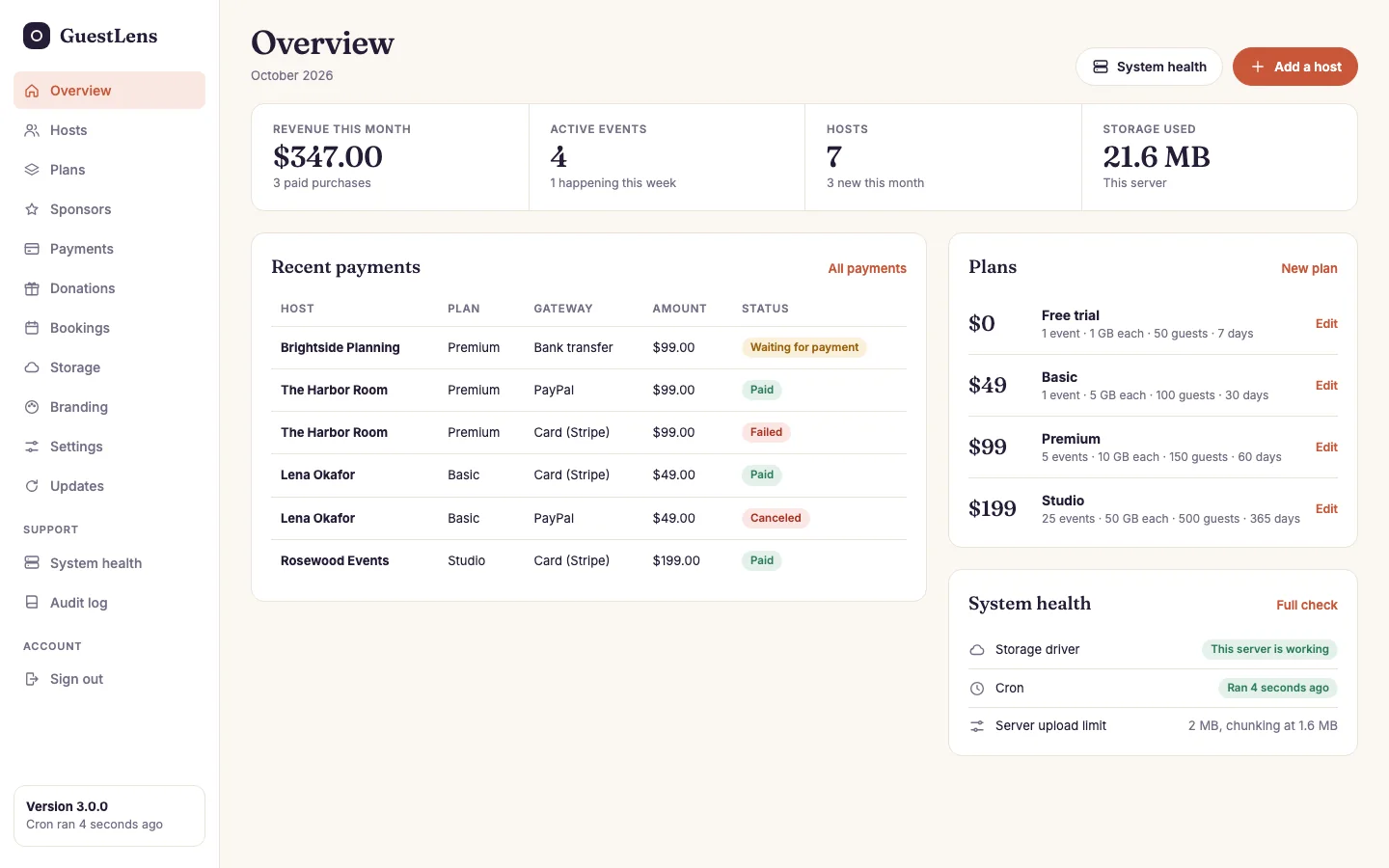
- The sidebar. Every admin screen. Each one has its own page in this guide.
- This month: revenue, live events, hosts, and the storage used on this server.
- Recent payments, with their status. All payments opens the full list.
- Plans: what you sell and the main limits of each. Edit opens a plan.
- System health: storage, cron, and your server's upload limit. Full check opens every check.
- System health and Add a host, the two things you do most from here.
- Your version and when cron last ran. It turns red when something needs you.
What each screen is for
| Screen | Use it to | Read |
|---|---|---|
| Hosts | See your customers, add one, give a plan, suspend, or sign in as them. | Hosts |
| Plans | Decide what you sell, at what price, with which limits. | Plans |
| Payments | Set up Stripe, PayPal, and bank transfer. Approve bank transfers. | Payments |
| Storage | Keep files on this server or on S3-compatible storage. | Storage and S3 |
| Branding | Your product name, logo, colors, and links. | Branding |
| Settings | Email, sign-ups, defaults for new events, upload limits, and rate limits. | Settings and email |
| Updates | Finish an update after you upload new files. | Updating |
| System health | Check cron, the job queue, PHP, and disk space. | System health |
| Audit log | See who deleted, changed, or refunded what, and when. | Audit log |
Warnings at the top
When something on your site needs attention, a colored bar appears at the top of every admin page. The most common one says Cron is not running, with the exact line to add. The bar goes away by itself when the problem is fixed. You do not need to close it.