 GuestLens
For hosts
The slideshow
The slideshow is made for a TV or a projector at the venue. New photos appear on the big screen a few seconds after the host approves them. That is often what makes more guests start uploading.
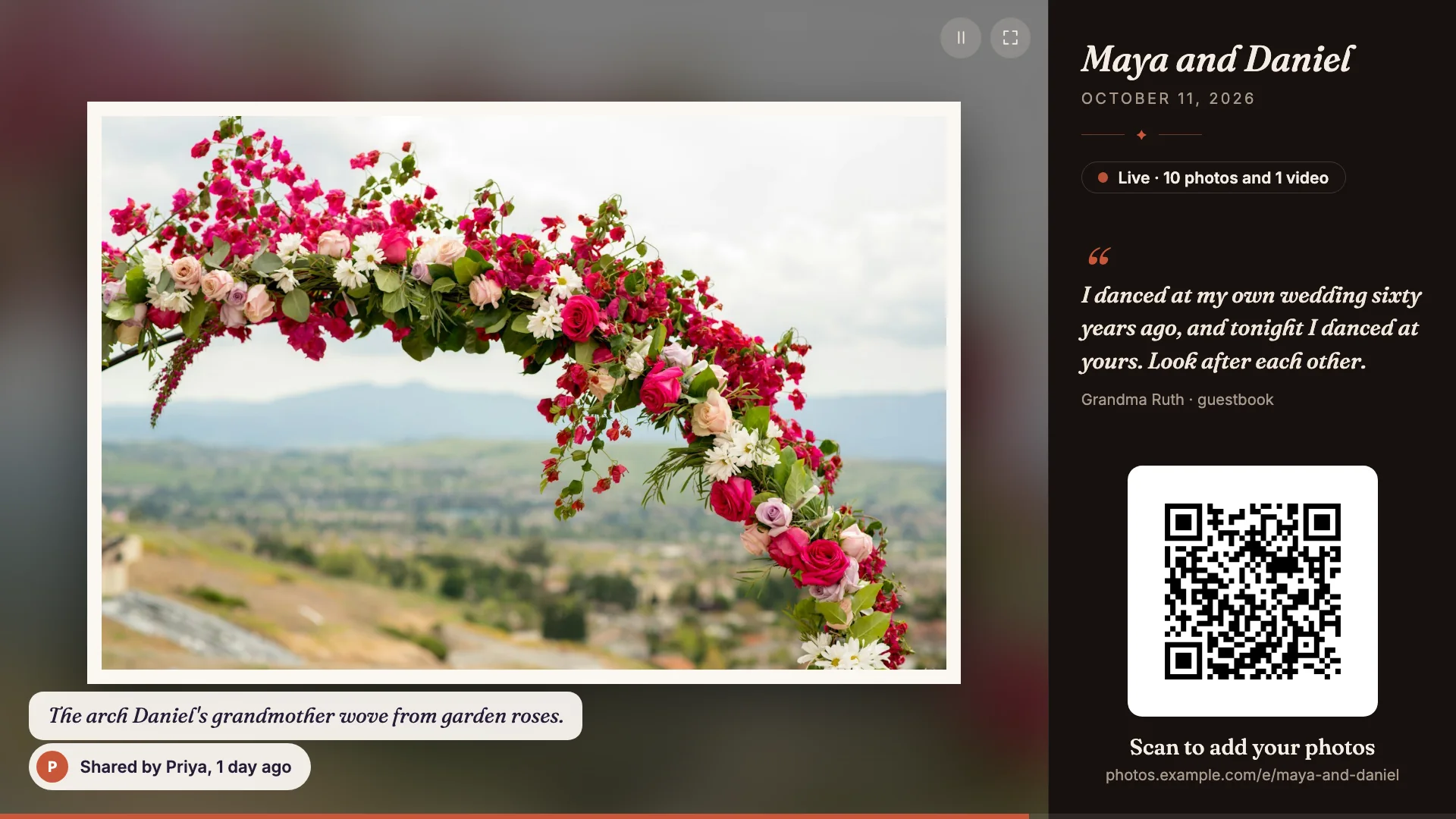
- The event name and date.
- The live count of photos and videos.
- A guestbook message. It changes every few photos.
- The QR code, always on screen, so anyone who walks past can join in.
- Who shared the photo, and when, with the caption above it when there is one.
- Pause and full screen. They fade away when the mouse is still.
Start the slideshow
- On the TV's computer or browser, the host signs in and opens the event.
- They click Open slideshow at the top of the event.
- Press
For the full-screen button.
Nobody has to sign in on the TV. The slideshow address carries its own long secret key, so the host can also copy the Slideshow link from Event settings and open it on any screen, such as a venue's own computer.
How it behaves
- Each photo shows for 5 seconds. A video plays for up to 20 seconds, without sound.
- Photos sit on a blurred copy of themselves, so portrait and landscape photos both fill the screen with no black bars.
- Only approved photos and videos appear. A photo the host deletes, hides, or rejects leaves the slideshow within about 10 seconds.
- When the event has sponsors, a card thanking one of them takes one slide after every 8 photos.
- It checks for new photos every 10 seconds and adds them without reloading.
- It asks the device to keep the screen awake.
- If the Wi-Fi drops, it keeps showing the photos it already has and shows a small Reconnecting note. A blank screen at a wedding is worse than slightly old photos.
Photos only
New in 5.0. A photographer who shows only their own photos may not want the side panel. In Event settings, on the Slideshow link card, tick Photos only and press Save settings. The photos then fill the whole screen. The event name, the live count, the guestbook messages, the QR code, and the "Shared by" line are hidden. Captions still follow Show captions to guests, and sponsor cards still show. Reload the slideshow on the screen to see the change.

To show only the host's own photos, set the event to Approve before anything appears and approve only those. The slideshow shows approved files only.
Keyboard
| Key | Does |
|---|---|
F | Full screen on or off |
Space | Pause or play |
| Left and right arrows | Previous or next photo |
Stop a screen you do not control
If the slideshow link was shared by mistake, the host opens Event settings and presses Make a new slideshow link. Every screen using the old link stops at once. Open the new link on the screens that should keep showing.