 GuestLens
Run your site
Updating
When a new version comes out, you upload the new files over the old ones, then press one button in the admin. Your photos, videos, settings, and customers are kept.
Back up
On MySQL or MariaDB, make a backup in your hosting panel (in cPanel: Backup, or
phpMyAdmin, then Export). GuestLens cannot do this for you. On
SQLite, GuestLens saves a full copy of the database file in
storage/app/updates/backups before it changes anything.
Upload the new files
Download the new version from your CodeCanyon downloads page and unzip it on your computer.
Upload everything inside its script folder over your current GuestLens folder, the
same way you installed it. Replace the old files.
.env file or your storage
folder. The new zip has no .env, so uploading over the old files is safe.
But do not delete your folder first and upload fresh.
Finish the update in the admin
Open Updates in the admin. It shows the version of the files and of the database. Press Finish the update.
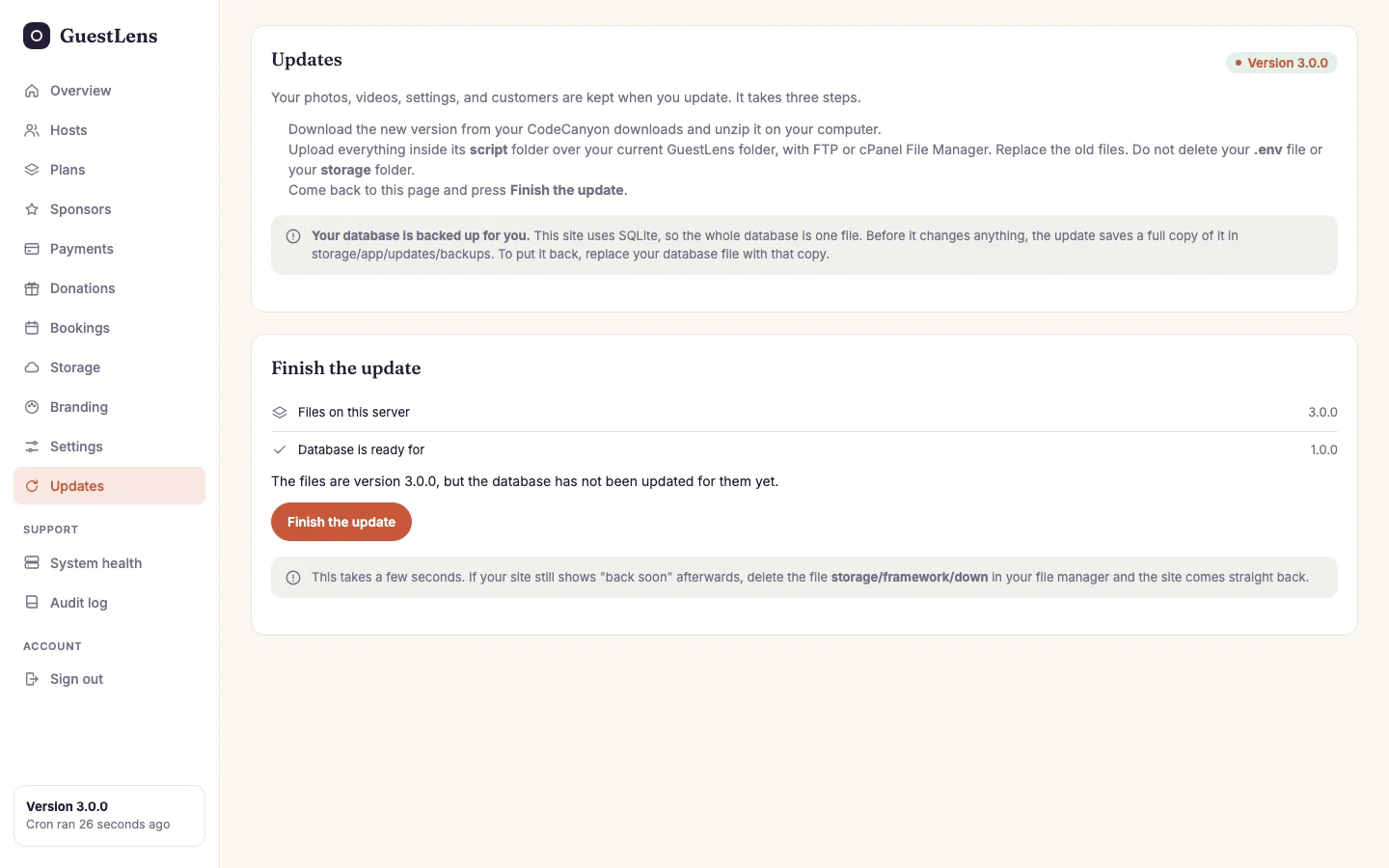
- The steps, repeated here for you, and a note about backups.
-
Finish the update: the version of the files and of the database. When the files
are newer, a button appears. It saves a copy of
.env, puts the site into maintenance mode for a moment, updates the database, clears the caches, and brings the site back.
If a step fails, GuestLens stops there and tells you which one. Nothing in
storage is touched, so uploaded files are safe.
Updating from 1.0 to 2.0
Follow the three steps above. Finish the update adds the tables and columns that version 2.0 needs. Nothing changes for your customers until you choose:
- Your plans gain four switches, all on: sponsors, the photo report, donations, and location stamping. Turn off any you want to sell only in bigger plans. See Plans.
- Guest donations stay off until you turn them on. See Guest donations and payouts.
- Location stamping stays off until you turn it on. See Location stamping.
- Captions and the photo report work at once, in every event.
Updating from 2.0 to 3.0
Follow the three steps above. Finish the update adds the tables and columns that version 3.0 needs. Nothing changes for your customers until you choose:
- Your plans gain three switches: the video download and the offline album (on), and bookings (off). See Plans.
- Bookings stay off for the whole site until you turn them on. See Bookings.
- The spam check on the sign-in and sign-up forms works at once. The captcha stays off until you pick a provider. See Spam protection.
- The API stays off until you turn it on. See The API.
- The photo book, the video download, and the offline album work at once, in every event whose plan includes them.
- If you pasted a chat widget into the analytics snippet, move it to the new Host support card. See Host support.
The download also has a new folder, perfex-module. You need it only if you use Perfex
CRM. Do not upload it to your GuestLens site. See Perfex CRM connector.
Updating from 3.0 to 4.0
Follow the three steps above. Finish the update adds the tables and columns that version 4.0 needs. Then:
- Your plans gain one switch, Customer access link, which is on. See Customer access.
- Deleting an event or a host now deletes its files from storage. Events that were deleted before the update are cleaned too, by the cron job, within about an hour. Their files cannot be brought back, so download anything you still need from those folders first.
- Google Drive is a new storage choice. Nothing changes until you choose it. See Google Drive storage.
- Site sponsors have a fourth choice, Events on these plans. See Site sponsors.
Updating from 4.0 to 4.1
Follow the three steps above. Finish the update turns the video slideshow download, the offline HTML album, and the customer access link back on in every plan and every purchase, because the plan form turned them off by mistake. Then:
- If you really want one of those three off in a plan, open the plan and untick it. The plan form now has a box for each of them. See Plans.
- If your logo already has the name in it, untick Show the site name next to the logo under Branding. See Branding.
- If the installer or System health shows an orange PHP warning, ask your host for PHP 8.3.36, 8.4.27, 8.5.12, or newer. See Requirements.
Updating from 4.1 to 4.2
Follow the three steps above. Finish the update lets Bookings on one day be empty. Every booking page keeps the number it had. Then:
- If you take every client on any day, open Bookings, Dates, and empty Bookings on one day. See Bookings.
- If you used a sign-in background photo only to match your color, you can remove it. The sign-in gradient now follows your accent color. See Branding.
- The customer bar is gone, so
resources/views/components/host/customer-bar.blade.php,resources/css/areas/customer.css, andresources/views/admin/payments/_nav.blade.phpare no longer used. You can delete them, or leave them.
Updating from 4.2 to 5.0
Follow the three steps above. Finish the update adds the columns that version 5.0 needs. Nothing changes for your customers until you or they choose:
- Your plans gain one switch, ZIP download, which is on. A purchase made before 5.0 includes it. See Plans.
- Hosts find Customize the theme on the Theme card of event Settings. Every event keeps its theme until the host saves a Custom one. See The Custom theme.
- Branding has an optional Second color. Empty, everything looks the same as before. See Branding.
- If you replaced the home page by editing
LandingController.phporguest/landing.blade.php, move your page toresources/views/custom/home.blade.phpand undo that edit. From now on, updates leave your page alone. See Your own home page.
If you changed any files
An update replaces every file in the package. If you edited a template or a theme, keep a copy of your change and apply it again after the update. The Changelog lists what changed in each version.