 GuestLens
For hosts
Create an event
A host opens Events and clicks Create event. Creating an event uses one event credit from a plan they bought.
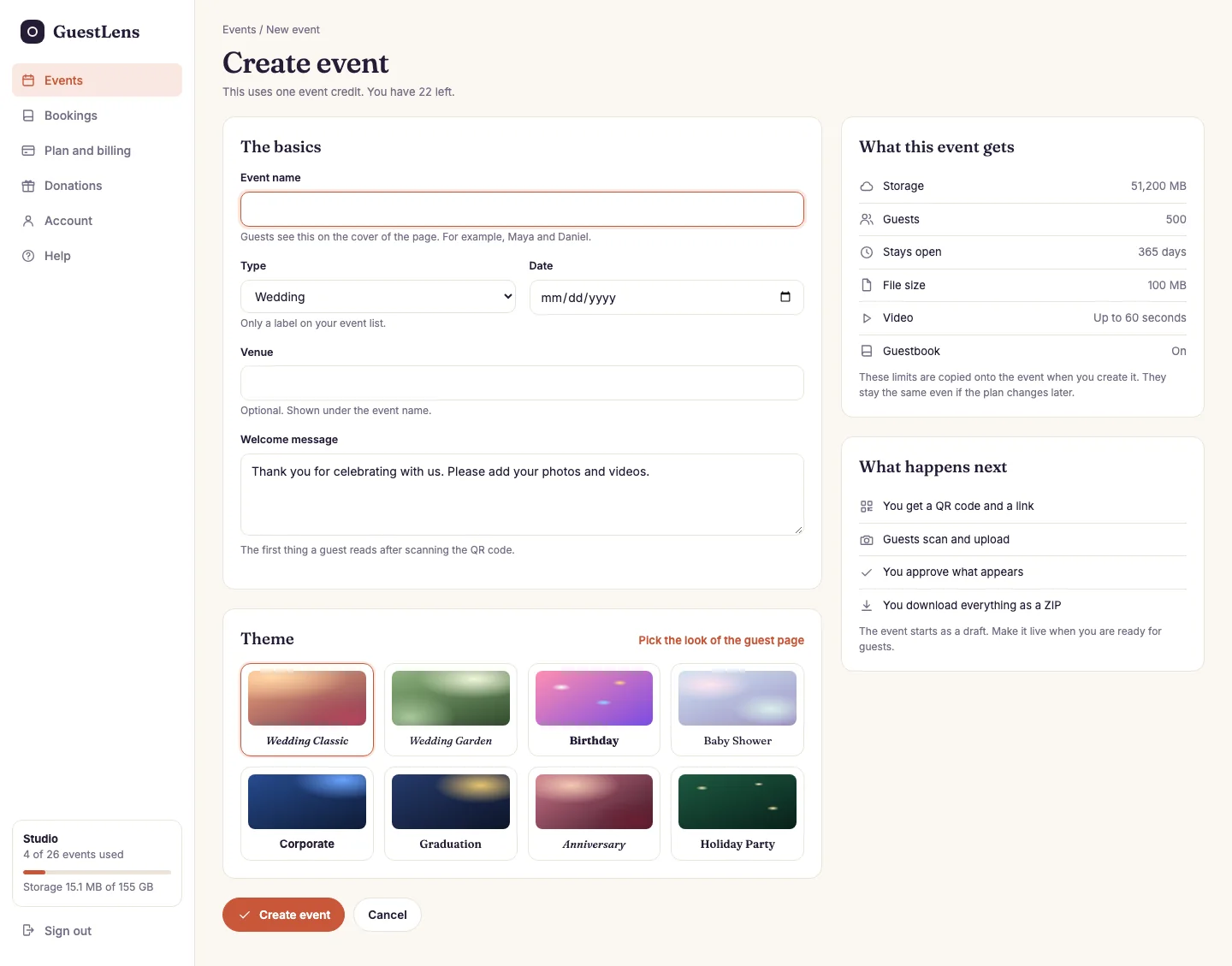
- The basics. The event name is shown on the cover of the guest page, for example Maya and Daniel. The type is only a label on the host's list. The date and venue are shown under the name. The welcome message is the first thing a guest reads after scanning.
- Theme: the look of the guest page. It can be changed later, and the host can make their own in Settings. See Event themes.
- What this event gets: the storage, guests, days open, file size, and video length from the host's plan. These limits are copied onto the event when it is created, so they stay the same even if the plan changes later.
- Create event.
Pick the plan that pays
New in 5.0. When a host has two or more plans with credits left, the form has a Plan card. It lists each plan with the credits left and the end date, and starts on the plan that runs out first. Pick another one to keep, for example, a Premium credit for a bigger event. What this event gets changes to show the picked plan's limits. A host with one plan does not see the card.
The event address
Each event gets its own address, made from its name: for example
your-site.com/e/maya-and-daniel. The QR code points there. If two events have the same
name, GuestLens adds a number to keep the addresses apart.
Draft, Live, and Closed
| Status | What guests can do |
|---|---|
| Draft | Nothing. The link does not work yet. A new event starts here, so the host can set it up and test the print first. |
| Live | Open the page, upload, and sign the guestbook. |
| Closed | Look at the gallery and read the guestbook. Nothing new can be added. |
While an event is a draft, its dashboard shows a Make it live button. An event closes by itself when its upload time ends, or the host closes it by hand in Event settings.