 GuestLens
For hosts
Customer access
A host often works for someone else: a photographer for a couple, a planner for a company. With customer access, the host gives that customer a private link to one event. The customer opens it on any phone or computer, with no account, and sees only the parts the host chose.
To see it on the live demo, open the customer link of the Maya and Daniel wedding. It opens the slideshow link, the QR codes, moderation, and the guestbook.
Turn it on
- Open the event, then Settings, and press Set up customer access.
- Tick Turn on the customer link.
- Tick what the link opens (see the table below). The event overview always opens.
- Optional: set a password. With a password, a forwarded link is not enough. Tell the customer the password yourself, for example by phone.
- Press Save. The link shows on the right, with a copy button. Send it to your customer.
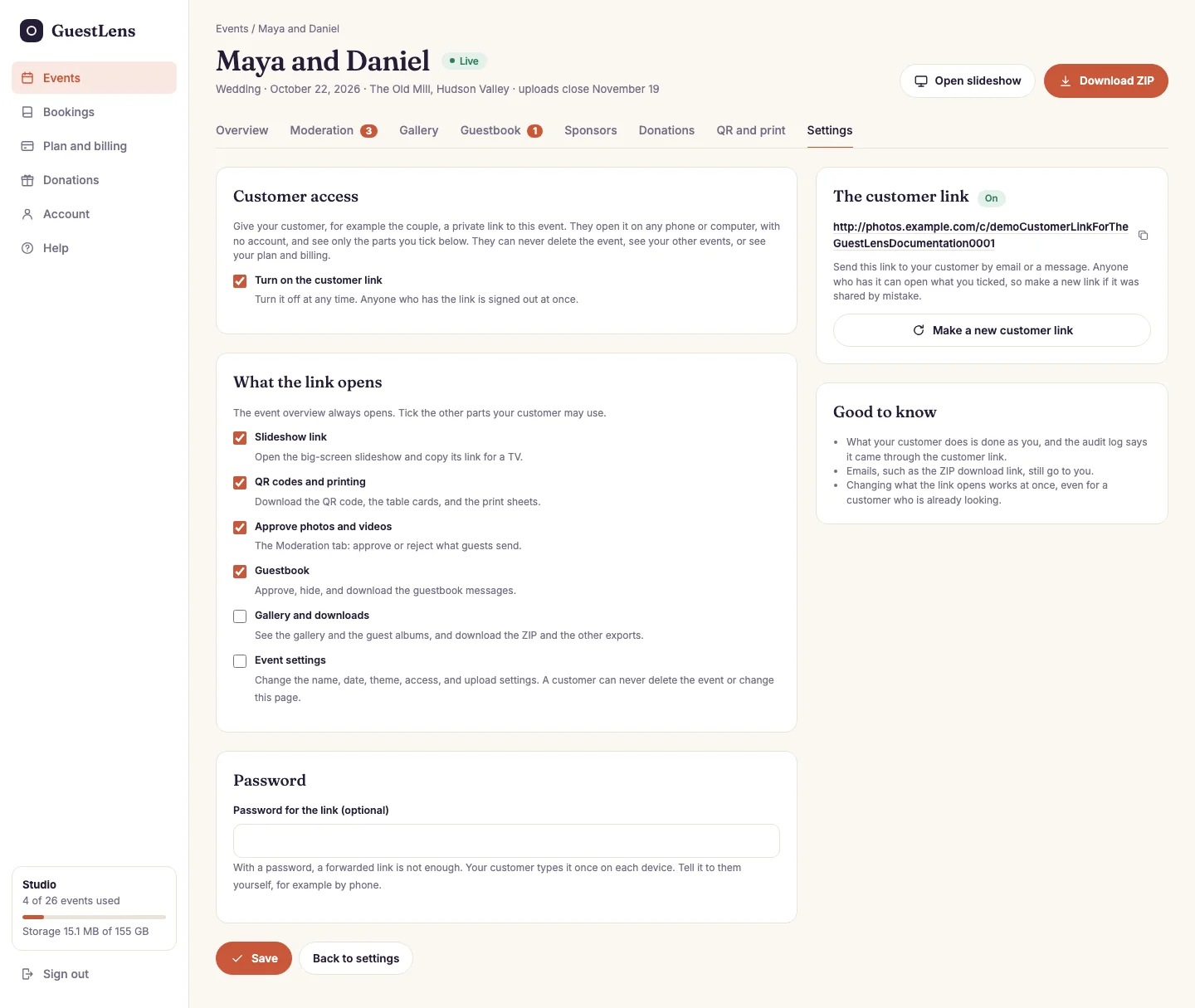
- Turn on the customer link: turn it off at any time, and anyone using the link is signed out at once.
- What the link opens: tick the parts your customer may use. See the table below.
- Password: optional. Your customer types it once on each device.
- Save keeps your choices.
- The customer link: click it to see what your customer sees, or copy it with the button next to it.
- Make a new customer link: the old link stops working. See Stop the link.
What the link can open
| Part | What the customer can do |
|---|---|
| Slideshow link | Open the big-screen slideshow and copy its link for a TV. |
| QR codes and printing | Download the QR code, the table cards, and the print sheets. |
| Approve photos and videos | Use the Moderation tab: approve or reject what guests send, and the comments. |
| Guestbook | Approve, hide, and download the guestbook messages. |
| Gallery and downloads | See the gallery and the guest albums, and download the ZIP, the photo report, the photo book, the video, and the offline album. |
| Event settings | Change the name, date, theme, access, and upload settings. A customer can never delete the event. |
A change to the ticked parts works at once, even for a customer who is already looking.
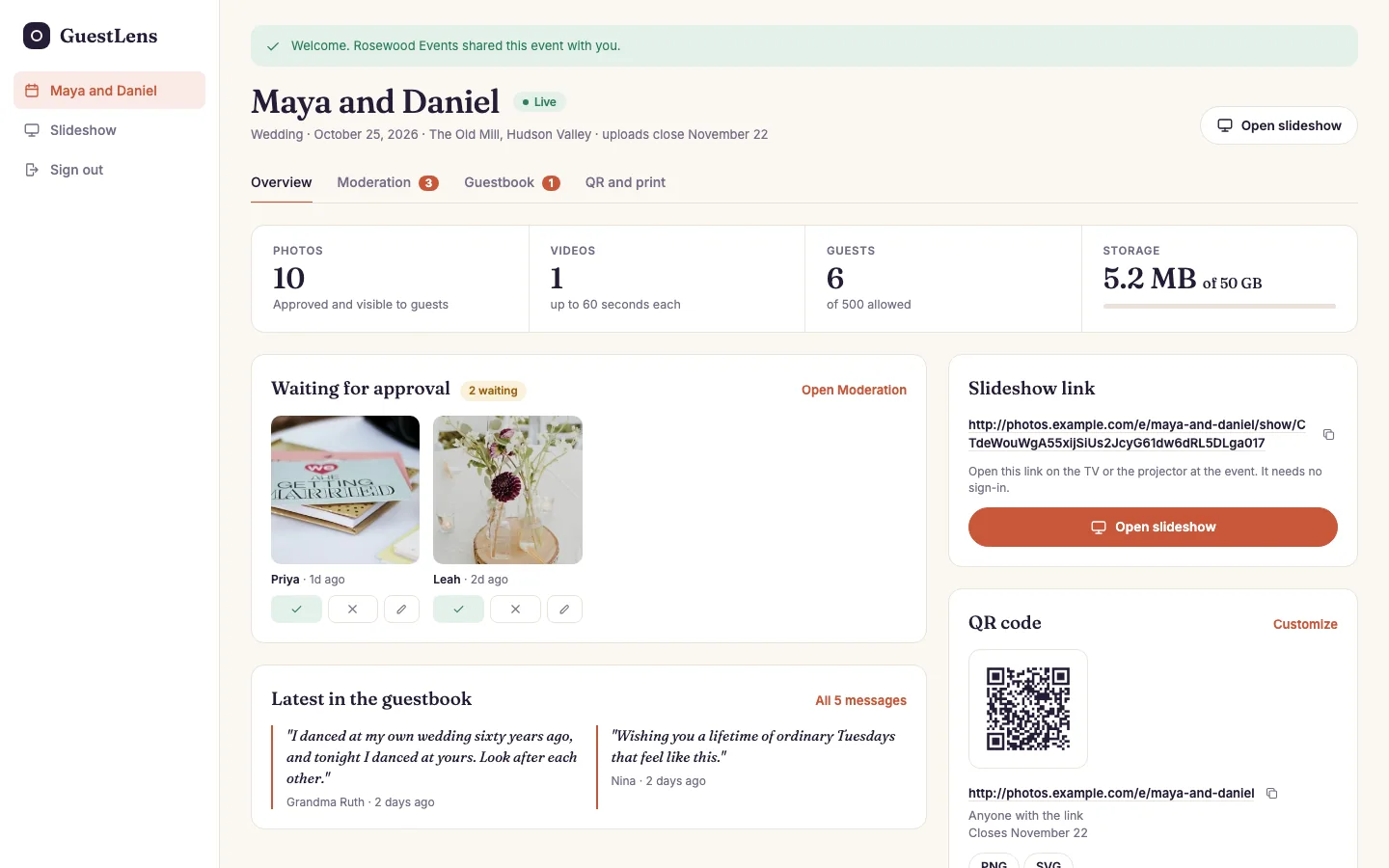
- The menu has the event, the slideshow (when you shared it), and Sign out. On a phone the menu is one row at the top.
- The tabs show only the parts you ticked. The overview always shows.
What a customer can never do
- See the host's other events, plan and billing, gifts, bookings, or account.
- Delete the event, or change the customer link itself.
- See the Sponsors and Gifts tabs of the event.
A customer who opens a page that is not shared is sent back to the event overview.
Stop the link
- Make a new customer link: the old link stops working, and anyone who used it is signed out. Send the new link to your customer.
- Turn off the customer link and save: the link stops working at once.
- A new password also signs out every device that used the old one.
For the site owner
Customer access is a plan switch, Customer access link, on by default. Turn it off in a plan to sell it only in your bigger plans. See Plans. An event made under a plan without it shows a note instead of the setup, and its link stops working.