 GuestLens
For guests
Event themes
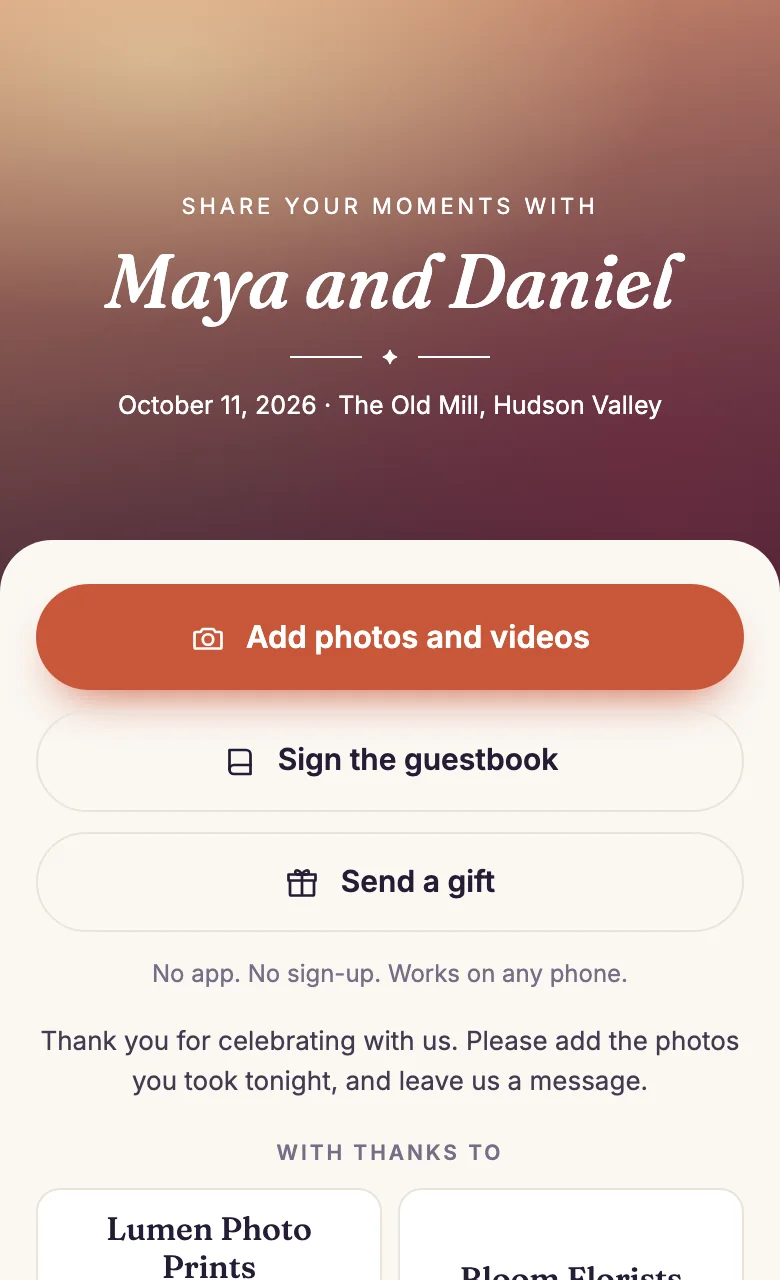
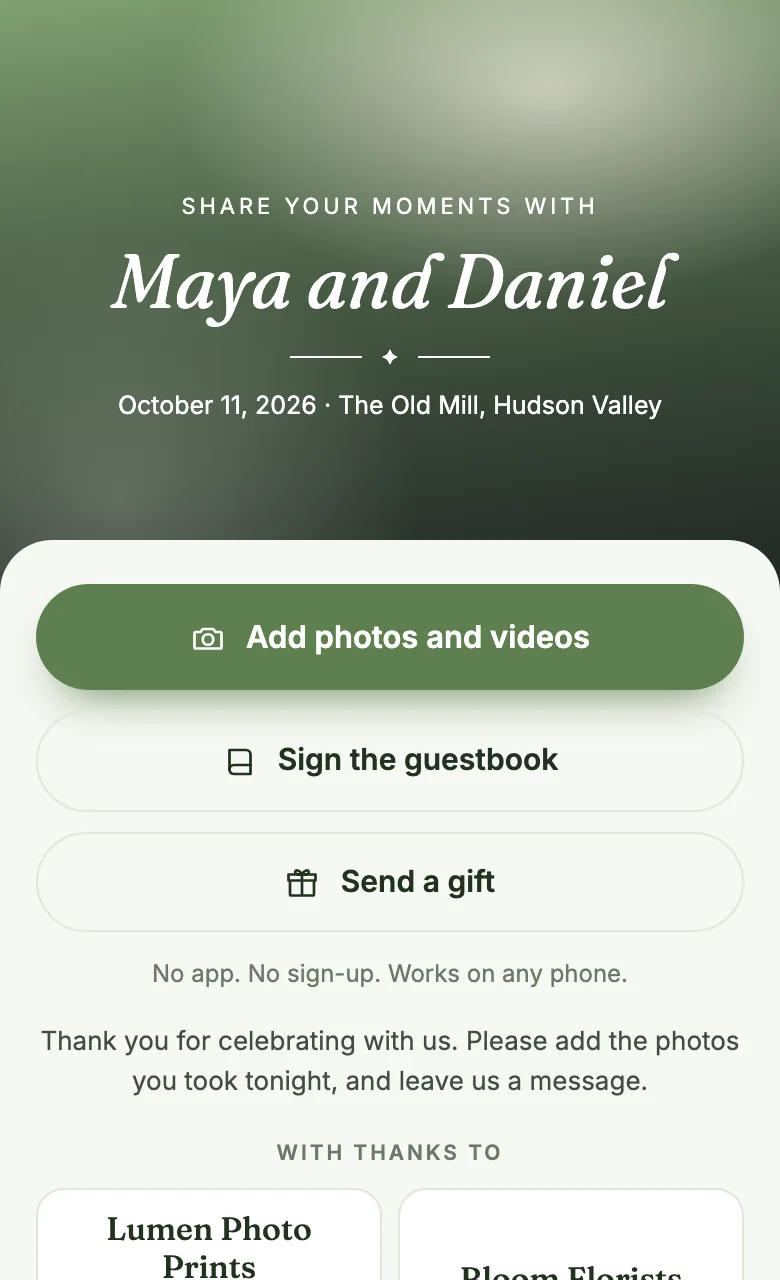
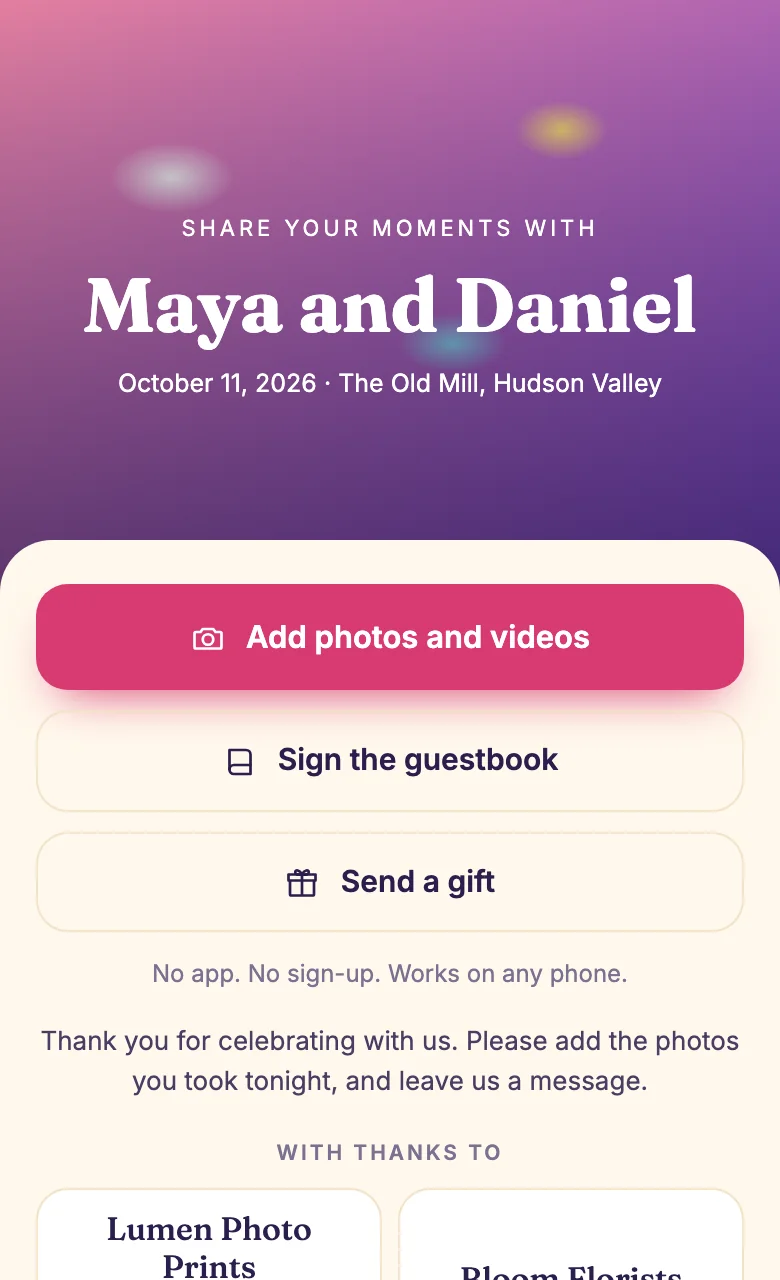
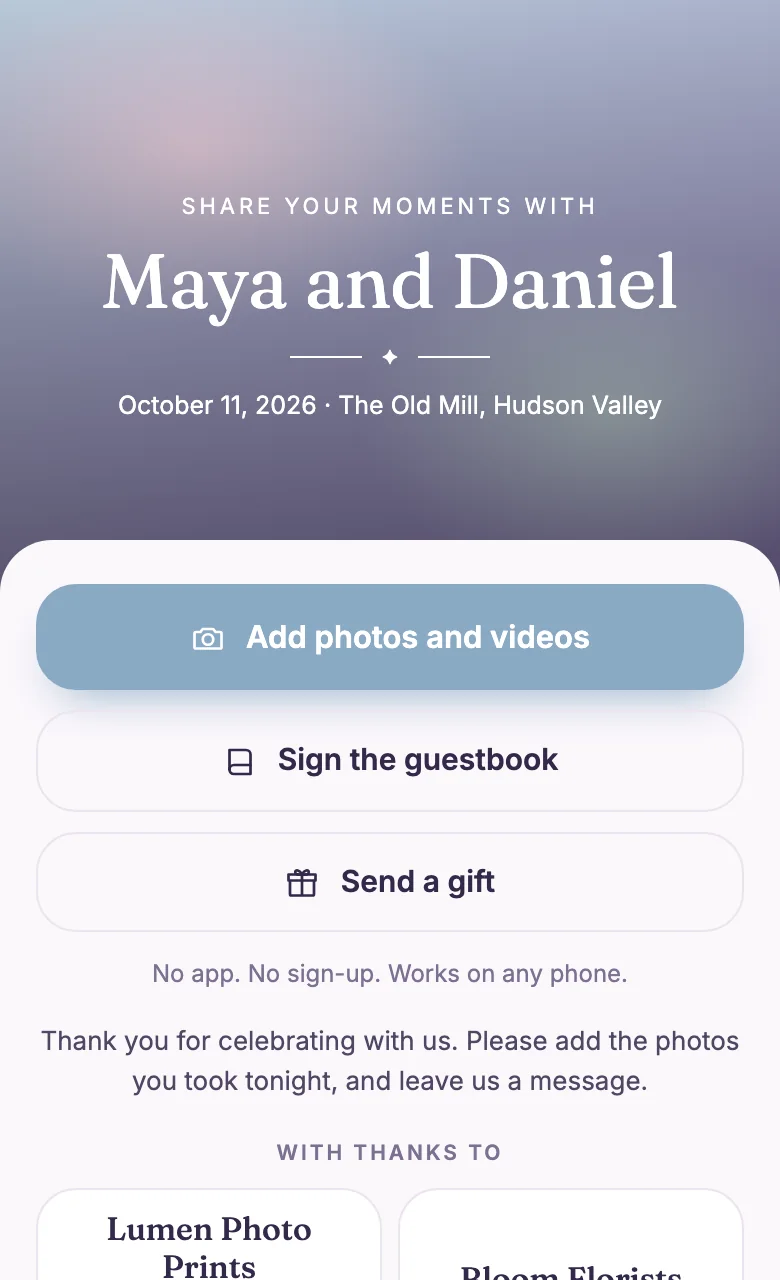
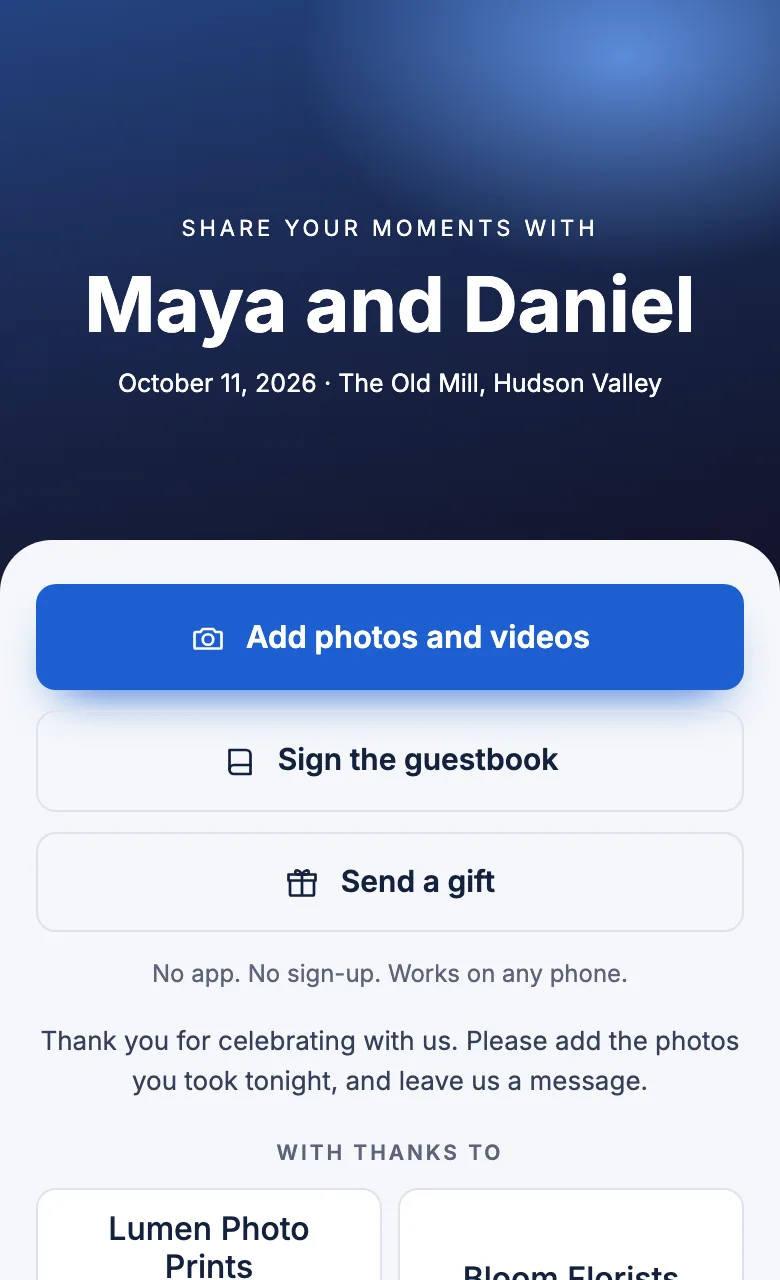
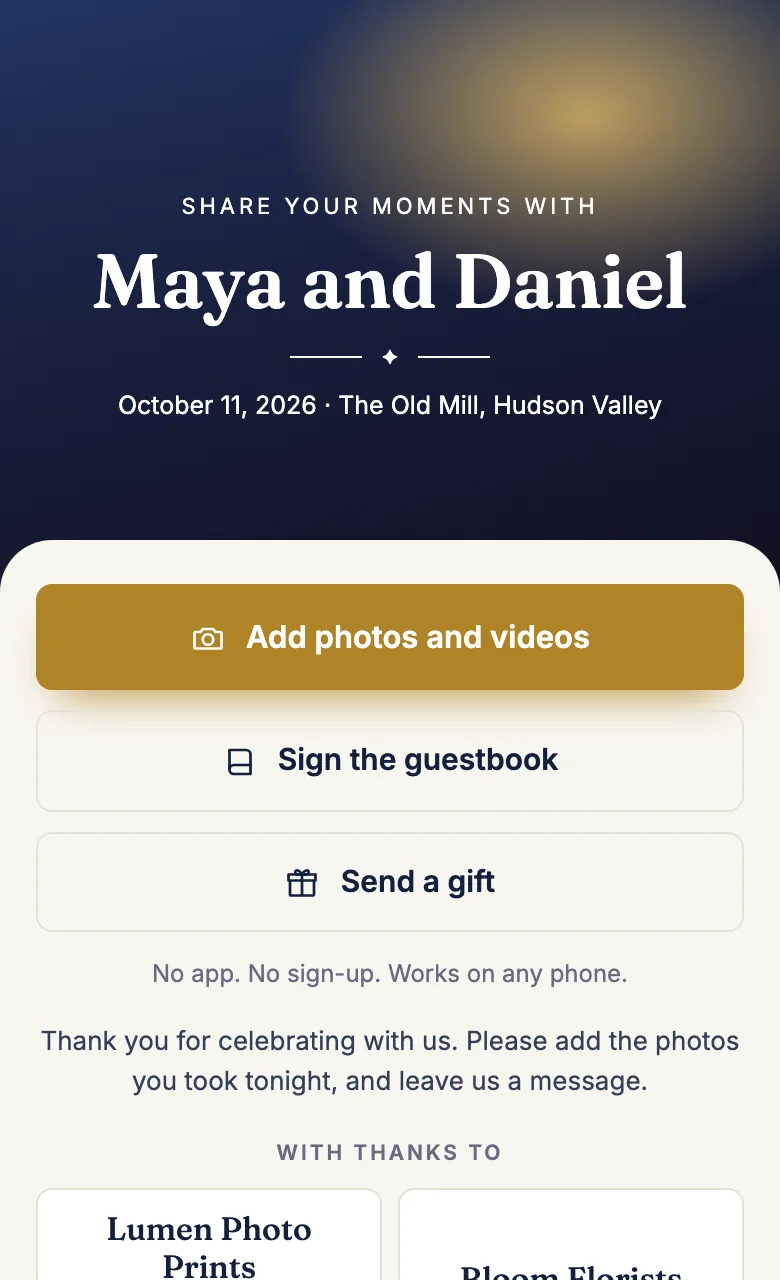
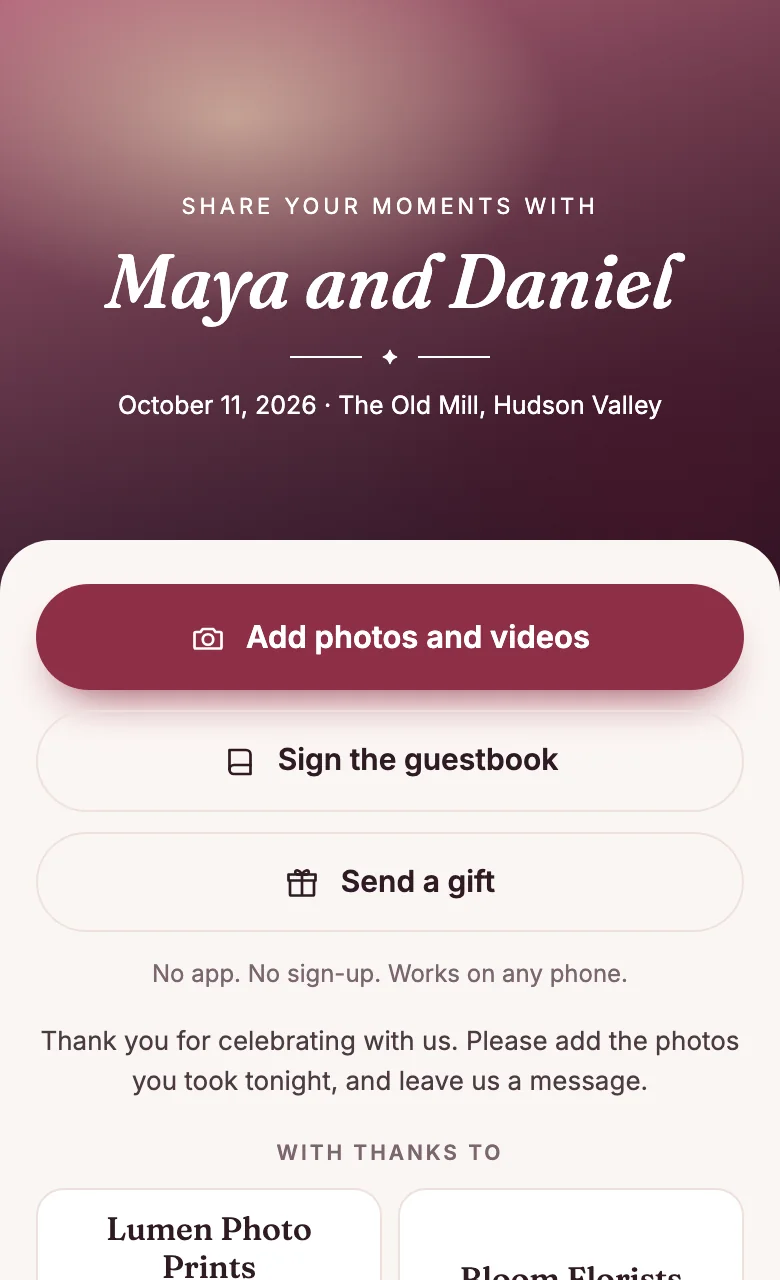
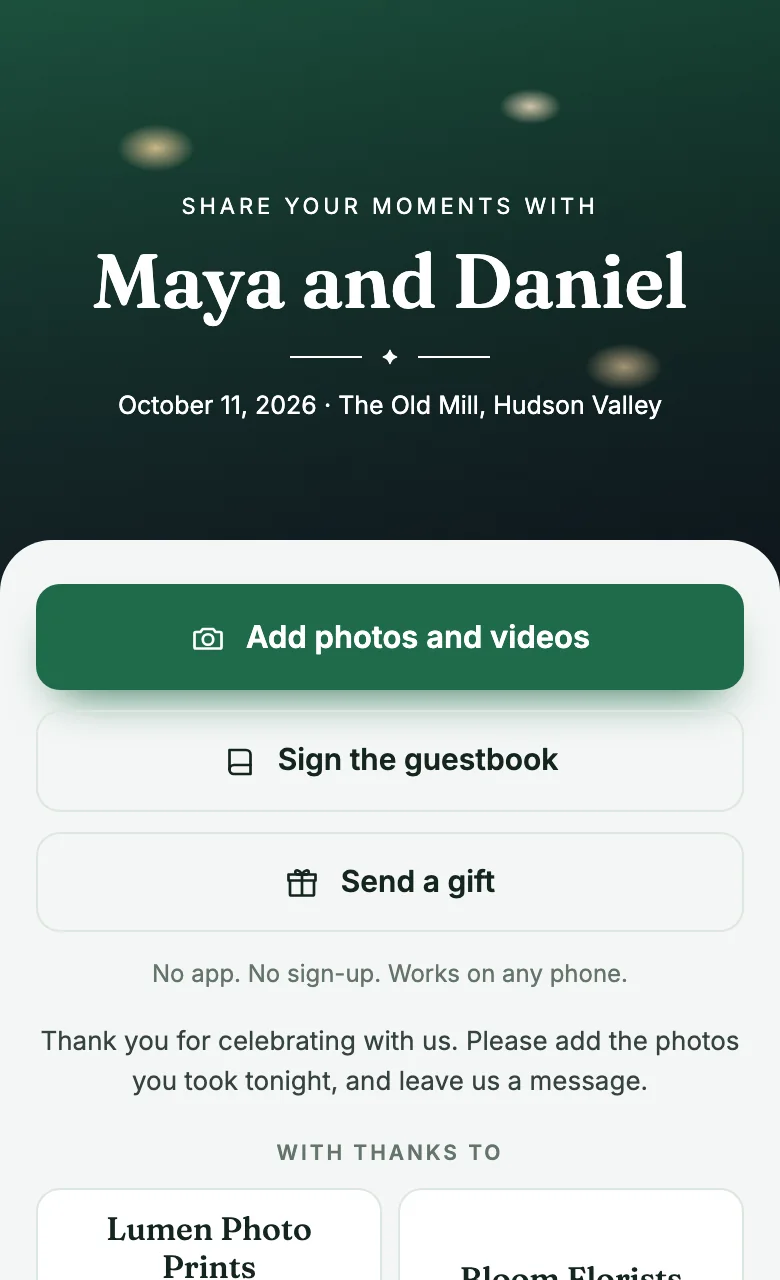
Eight themes ship with GuestLens. The host picks one for each event, when they create it or later in Event settings. A theme changes the whole guest page: the typeface of the title, whether it is italic, how heavy it is, how round the buttons are, the colors, the small ornament, and the cover artwork.
These pictures show the same event in each theme, without a cover photo. When the host picks a cover photo, it replaces the artwork, and the theme still sets the colors and the type.
| Theme | Suits |
|---|---|
| Wedding Classic | The default. Warm cream, aubergine, and terracotta, with an italic serif. |
| Wedding Garden | Outdoor and daytime weddings. Sage and ivory. |
| Birthday | Bright pink and purple, heavier type, rounder corners. |
| Baby Shower | Soft blue and lilac pastels. |
| Corporate | Clean blue, no serif and no ornament. |
| Graduation | Navy and gold. |
| Anniversary | Wine and rose. |
| Holiday Party | Evergreen and gold. |
You choose the theme every new event starts with under Settings, in New event defaults.
The Custom theme
New in 5.0. A host can also make their own theme for an event. In Event settings, on the Theme card, they press Customize the theme.
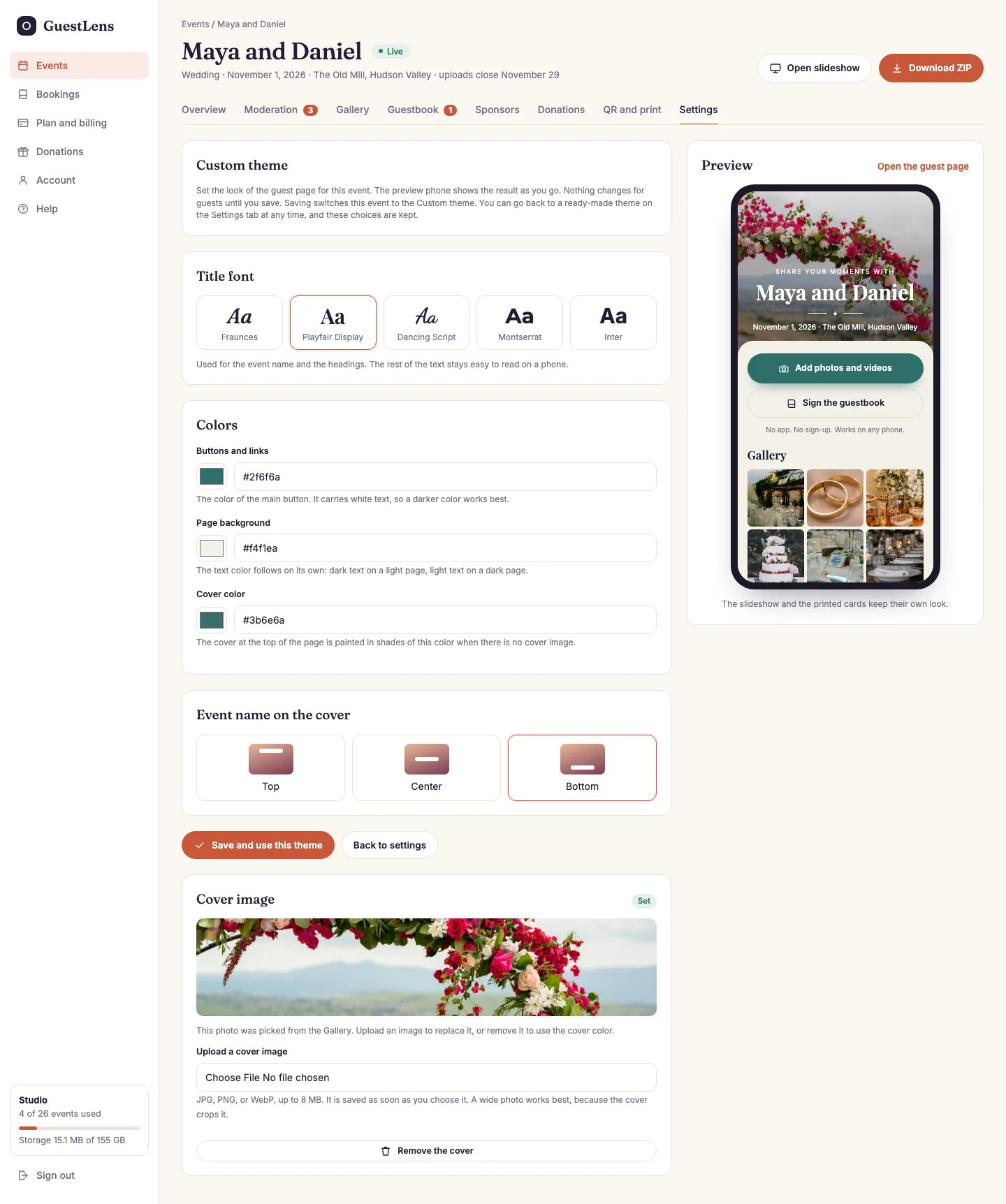
- Title font: Fraunces, Playfair Display, Dancing Script, Montserrat, or Inter, for the event name and the headings. The rest of the text stays easy to read.
- Colors: the buttons and links, the page background, and the cover. The text color follows the background on its own, so a dark page gets light text. The page warns when the button color is too light for white text.
- Event name on the cover: top, center, or bottom.
- Cover image: upload one, or remove it to paint the cover in shades of the cover color. It saves as soon as it is picked.
- Preview: the phone shows the guest page as the host changes each control.
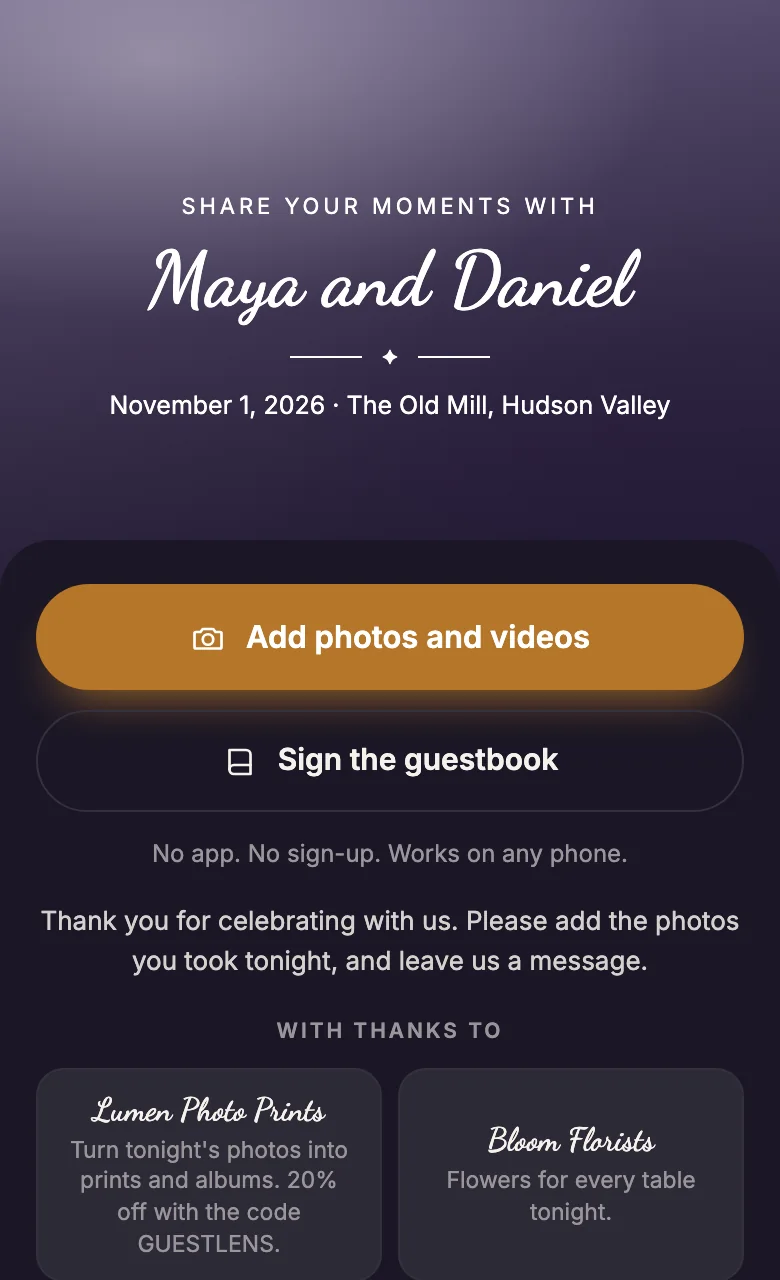
Save and use this theme switches the event to the Custom theme. The host can pick a ready-made theme again at any time, and the custom choices are kept for later. The Custom theme is used on every guest page, in the offline album, and in the video download. The slideshow and the printed table cards keep their own look.
A customer link with Event settings ticked can open the customizer too. See Customer access.
Add your own theme
Each theme is one block of CSS custom properties in resources/css/themes.css. To add a
ninth:
- Copy one block in
resources/css/themes.css, give it a new name, and change the values. - Add the same name and a label to the
themeslist inconfig/guestlens.php. - Rebuild the CSS on your own computer with
npm installandnpm run build, then upload thepublic/buildfolder.
This is the only task in GuestLens that needs Node.js, and only on your computer, never on the server.