 GuestLens
Run your site
Host support and live chat
Give your hosts a way to reach you: a help page, a support email, and, if you like, a live chat widget. New in version 3.0. You set it up in Admin, Settings, Host support.
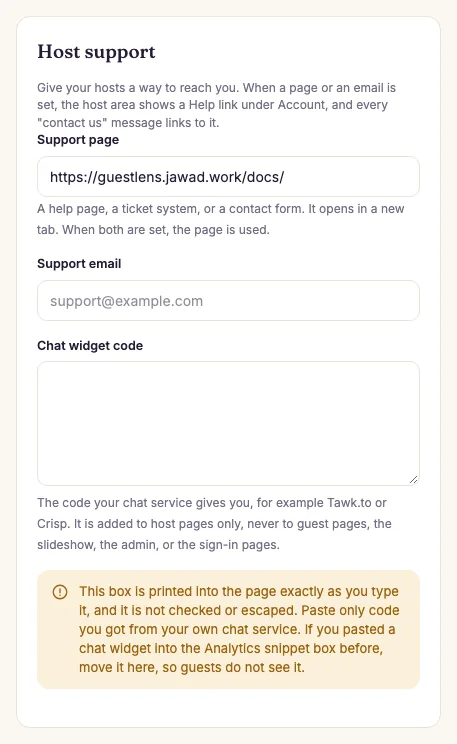
The three fields
- Support page: a help page, a ticket system, or a contact form. It must start with
https://orhttp://. - Support email: an address hosts can write to.
- Chat widget code: the code your chat service gives you, such as Tawk.to or Crisp. See Live chat below.
All three are empty by default. Fill in only the ones you use.
The Help link
When a support page or a support email is set, hosts see a Help link in their sidebar, under Account. A page opens in a new tab. An email opens the host's mail app. When both are set, the page is used.
The same link is added to the messages that tell a host to contact you, for example "Please contact us and we will set this up for you" on the plans page, and "This account has been suspended. Please contact support." on the sign-in page. With neither field set, those messages stay plain text.
Live chat
- Sign up with a chat service such as Tawk.to (free) or Crisp.
- In their dashboard, find the code to add to your website. It usually starts with
<script>. - Paste it into Chat widget code and press Save settings.
The chat bubble shows on host pages only. It never shows on guest pages, the slideshow, the super admin, or the sign-in pages. Guests do not see a chat meant for hosts, and the guest page stays fast on slow phones.
On the live demo, the Help link opens this documentation. No chat widget runs there.