 GuestLens
For hosts
Moderation
By default, nothing a guest uploads appears in the gallery until the host approves it. This keeps blurry, private, or unwanted photos off the page and off the big screen. A host who would rather have everything appear at once can turn approval off in Event settings.
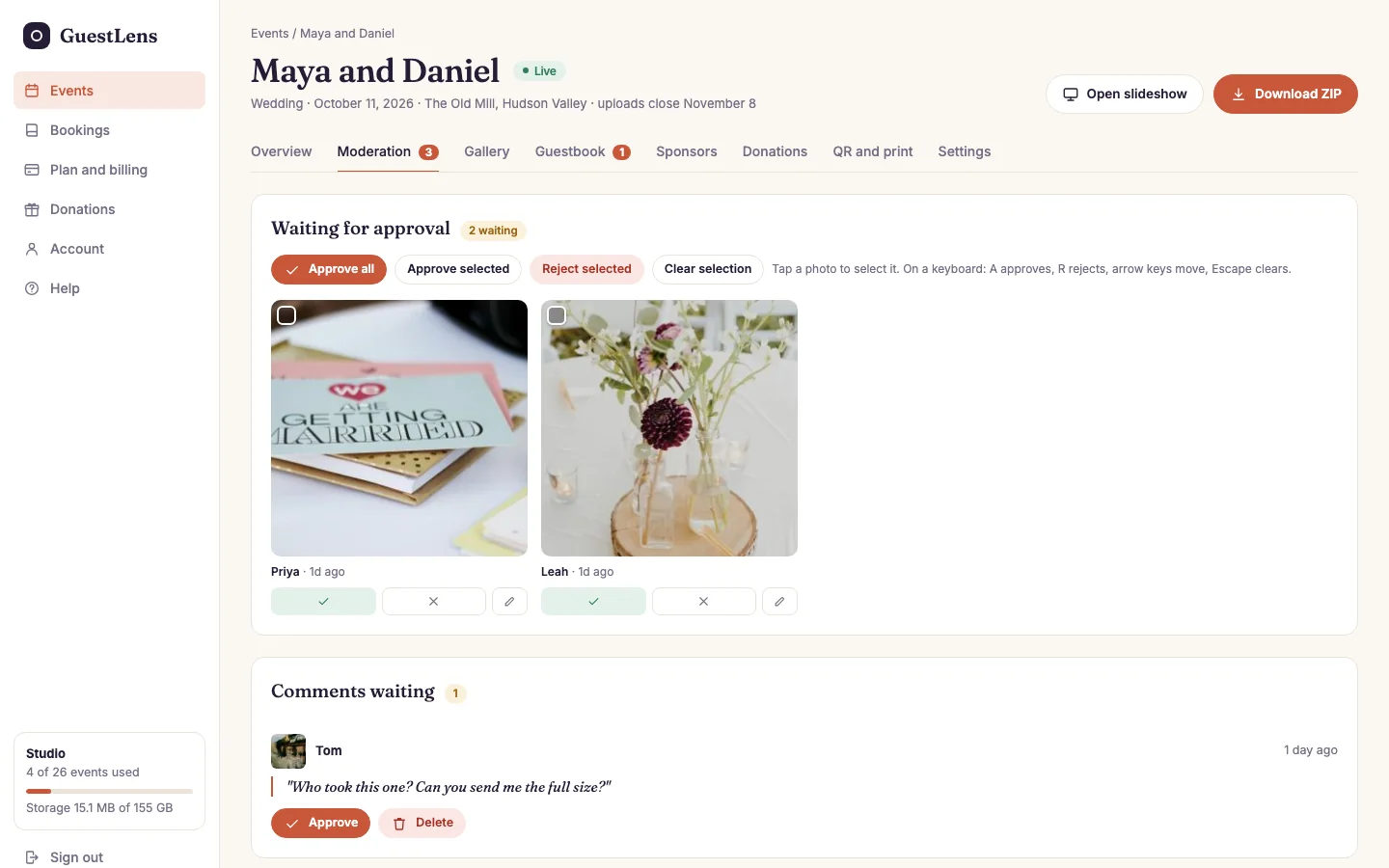
- Bulk actions. Approve all, or select several photos by tapping them, then Approve selected or Reject selected.
- A photo or video waiting for approval, with who sent it and when. Tap it to select it.
- Approve (the check) or reject (the cross) one file.
- Comments waiting: guests' comments on photos. Approve shows the comment under the photo. Delete removes it.
Made for a phone
Hosts often moderate on their phone at the end of a long evening, so the screen has big tiles and big buttons. It checks for new uploads by itself while it is open.
Keyboard shortcuts
On a computer, moderation is faster with the keyboard:
| Key | Does |
|---|---|
A | Approve the current photo |
R | Reject the current photo |
| Arrow keys | Move between photos |
Esc | Clear the selection |
Words are moderated too
The same approval rule covers words. A guestbook message waits on the Guestbook tab, and a comment on a photo waits here under Comments waiting. Each tab shows a red count while something is waiting.
Rejected files are not deleted. They stay out of the gallery, and the host can still find them in the full ZIP download.