 GuestLens
Run your site
Settings and email
Settings holds everything that applies to the whole site. A plan or an event can be stricter than these settings, never looser.
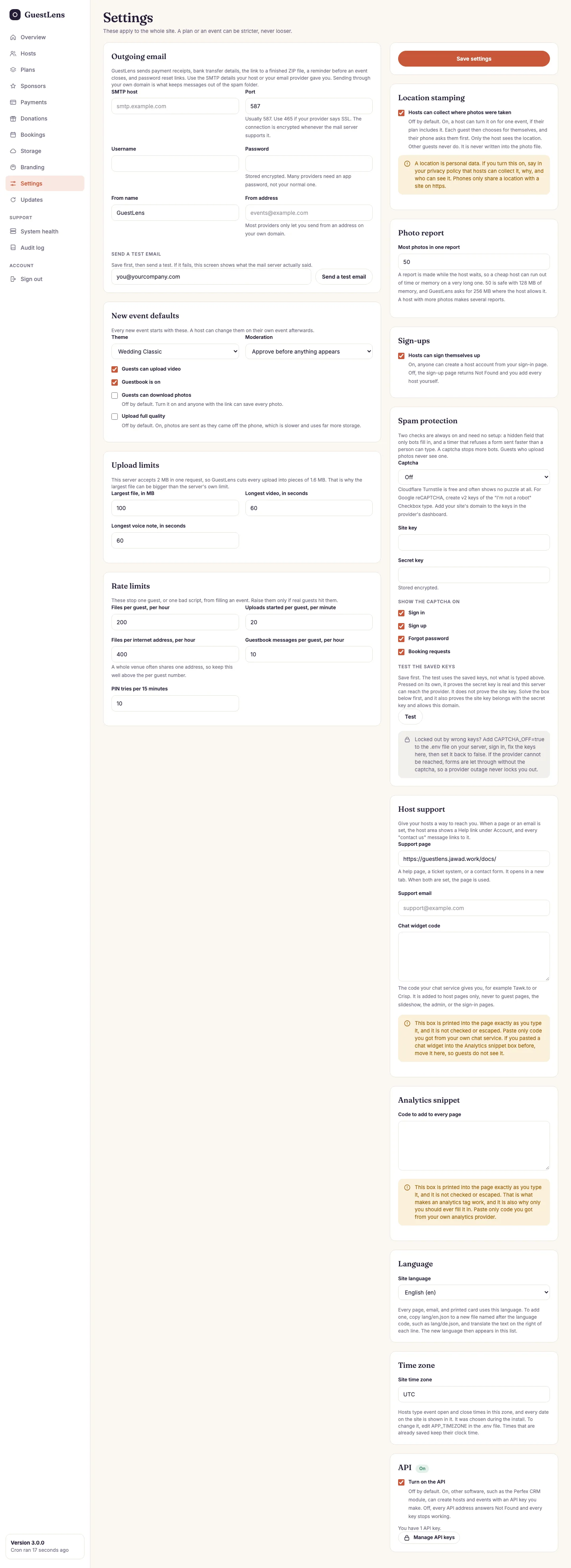
- Outgoing email: your SMTP details. See Email below.
- Send a test email, after you save. If it fails, the screen shows what the mail server said.
- New event defaults: the theme, approval rule, and switches every new event starts with. A host can change them on their own event.
- Upload limits: the largest file, the longest video, and the longest voice note, for the whole site.
- Rate limits: protection against one guest, or one bad script, filling an event. Raise them only if real guests hit them.
- Save settings.
- Sign-ups: whether hosts can create their own account. When off, the sign-up page shows Not Found and you add every host yourself.
- Analytics snippet: code from your analytics provider, added to every page. See the warning below.
- Time zone: the zone dates are shown in. Change it in
.env(APP_TIMEZONE). - Location stamping: whether hosts can collect where photos were taken. Off by default. See Location stamping.
- Photo report: the most photos one photo report can hold. 50 is safe on most shared hosting.
- Spam protection: the optional captcha on the sign-in, sign-up, forgot password, and booking forms. See Spam protection.
- Host support: a help page, a support email, and a chat widget for hosts. See Host support.
- API: turn on the API and manage its keys. See The API.
Under the analytics snippet, Language sets the language of every page, email, and printed card. See Translate GuestLens.
GuestLens sends payment receipts, bank transfer details, the link to a finished ZIP file, a reminder before an event closes, and password reset links.
- Fill in the SMTP details your host or email provider gave you: the SMTP host, the port, the username, and the password. Many providers want an app password here, not your normal one. The password is stored encrypted.
- Use port 587 unless your provider says to use 465 (often called SSL). The connection is encrypted whenever the mail server supports it.
- Set the From address to an address on your own domain. Most providers refuse anything else, and it keeps your messages out of spam folders.
- Press Save settings, then Send a test email to yourself.
Until you set up email, nothing is sent. Each email is written to
storage/logs/mail.log instead, so the site keeps working, and you can still read a
password reset link there.
On cPanel, the easiest choice is a mailbox on your own domain: create it under Email Accounts, then use Connect Devices to see its SMTP host and port.
Rate limits
| Limit | Default | Note |
|---|---|---|
| Files per guest, per hour | 200 | |
| Uploads started per guest, per minute | 20 | |
| Files per internet address, per hour | 400 | A whole venue often shares one address on its Wi-Fi, so keep this well above the per-guest number. |
| Guestbook messages per guest, per hour | 10 | |
| PIN tries per 15 minutes | 10 | Stops someone guessing an event PIN. |
The analytics box is printed into every page exactly as you type it. It is not
checked or cleaned. That is what makes an analytics tag work, and it is also why you should be the
only person who ever fills it in. Paste only code you got from your own analytics provider.