 GuestLens
For hosts
Captions and photo details
Every photo and video can carry a short caption. A guest can type one while the file uploads, and the host can write or change any caption later. The host also gets a page for each file with everything known about it. New in version 2.0.
Captions from guests
On the upload screen, each file has a small Add a caption box under its progress bar. It is optional. A guest can type while the file uploads, or after it has finished.
- A caption is one line of up to 200 characters.
- When the event approves uploads first, a caption waits with its photo, and the host sees it before approving. A guest can change their own caption until the host approves it.
- When the event shows uploads straight away, the caption shows straight away too.
The photo page
The host opens any file from the Gallery tab by clicking its picture, or from Moderation with the small pencil button next to approve and reject.
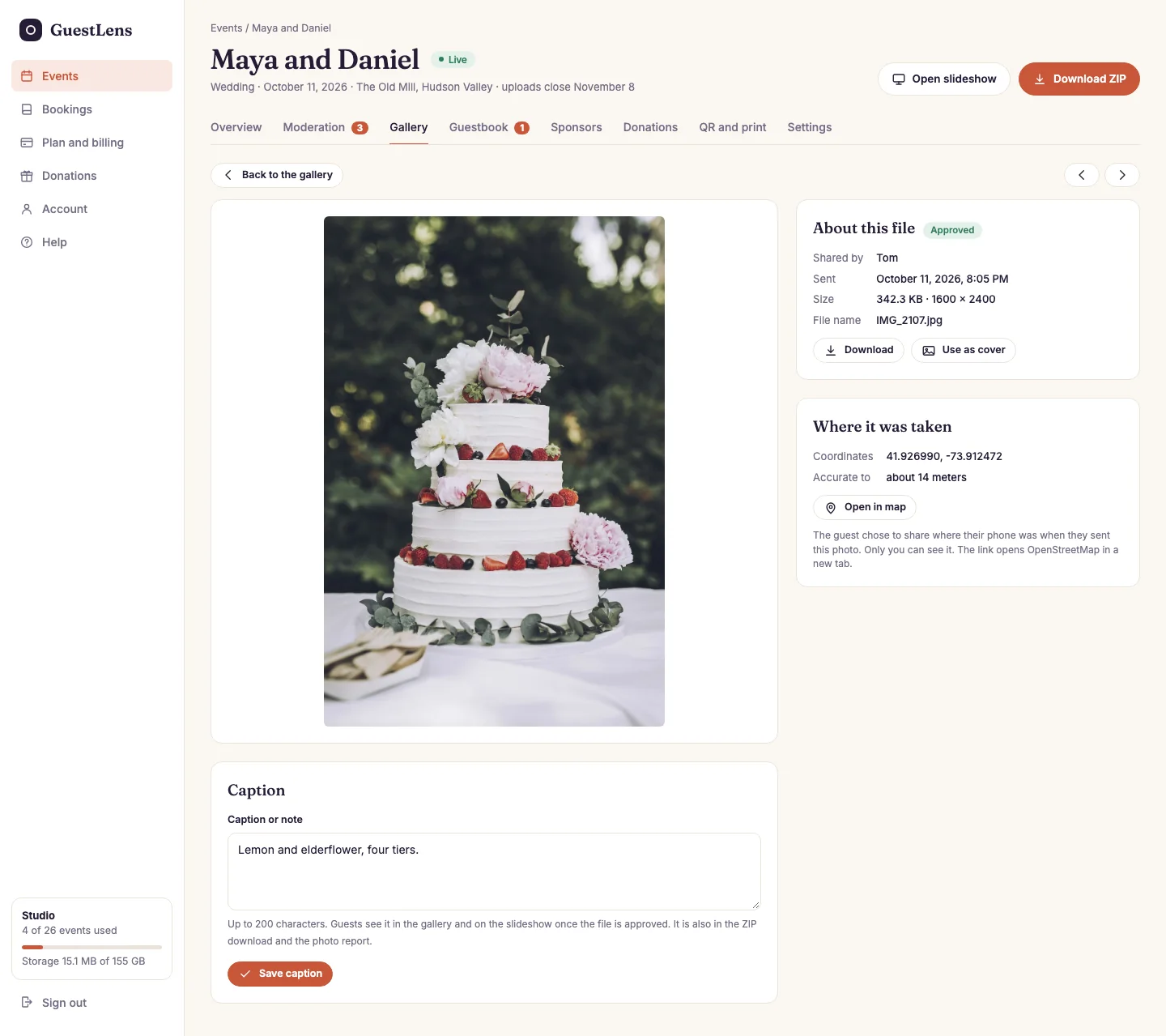
- Back to the gallery or the queue, and arrows to the previous and next file.
- The photo at web size, or the video with its player.
- The caption. Write, change, or clear it, then press Save caption.
- About this file: who shared it, when, its size, and buttons to download it, approve or reject it, or use it as the cover.
- Where it was taken, when the guest chose to share it. See Location stamping.
Where captions show
- Under the photo in the guest gallery, and in the lightbox.
- On the slideshow, above who shared the photo.
- Under each tile on the host's Gallery and Moderation tabs.
- In
captions.csvinside the ZIP download. - In the photo report PDF.
A host who uses captions as private notes, for example on a site visit, turns off
Show captions to guests in Event settings. Captions
are then kept and shown to the host only.