 GuestLens
For hosts
QR codes and printing
Every event gets one QR code that opens its guest page. The QR and print tab turns it into files ready for a print shop, or for a home printer.
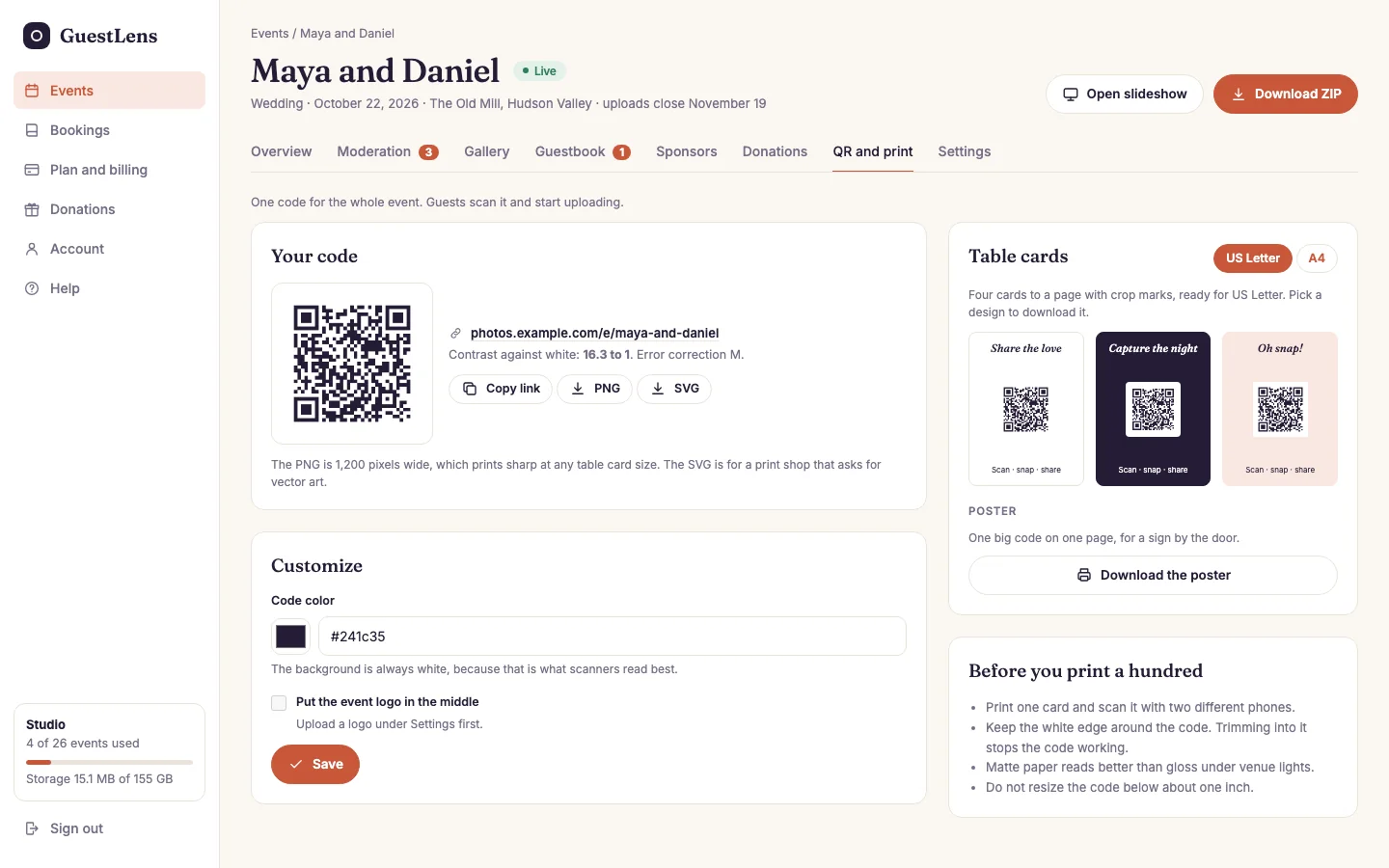
- The code, with the address it opens, and how well it will scan (the contrast and the error correction).
- Copy link, PNG, and SVG. The PNG is 1,200 pixels wide, which prints sharp at any table card size. The SVG is for a designer or a print shop that asks for vector art.
- Customize: the color of the code, and the event logo in the middle (upload the logo under Settings first). The background is always white, because that is what scanners read best.
- Paper size: US Letter or A4.
- Table cards: three designs, four cards to a page with crop marks. Click a design to download it. When the host turns it on in Sponsors, each card thanks the sponsors in one line under the code.
- Download the poster: one big code on one page, for a sign by the door or an easel.
Always scan a test print before the event. A code that looks fine on screen can
fail on paper if the contrast is low or the print is small. GuestLens raises the error correction
when you add a logo, but paper and ink still vary.
Before you print a hundred
- Print one card and scan it with two different phones.
- Keep the white edge around the code. Trimming into it stops the code from working.
- Matte paper reads better than glossy paper under venue lights.
- Do not make the code smaller than about one inch (2.5 cm).
The code always points at the event address. If the host sets a custom hostname, the code uses that hostname instead, so download it again after setting one.