 GuestLens
Run your site
Branding and white label
Put your own name and look on GuestLens. Your hosts and their guests see your brand, not ours. Everything on this page is set in the admin under Branding. There is no file to edit and nothing to search and replace.
-
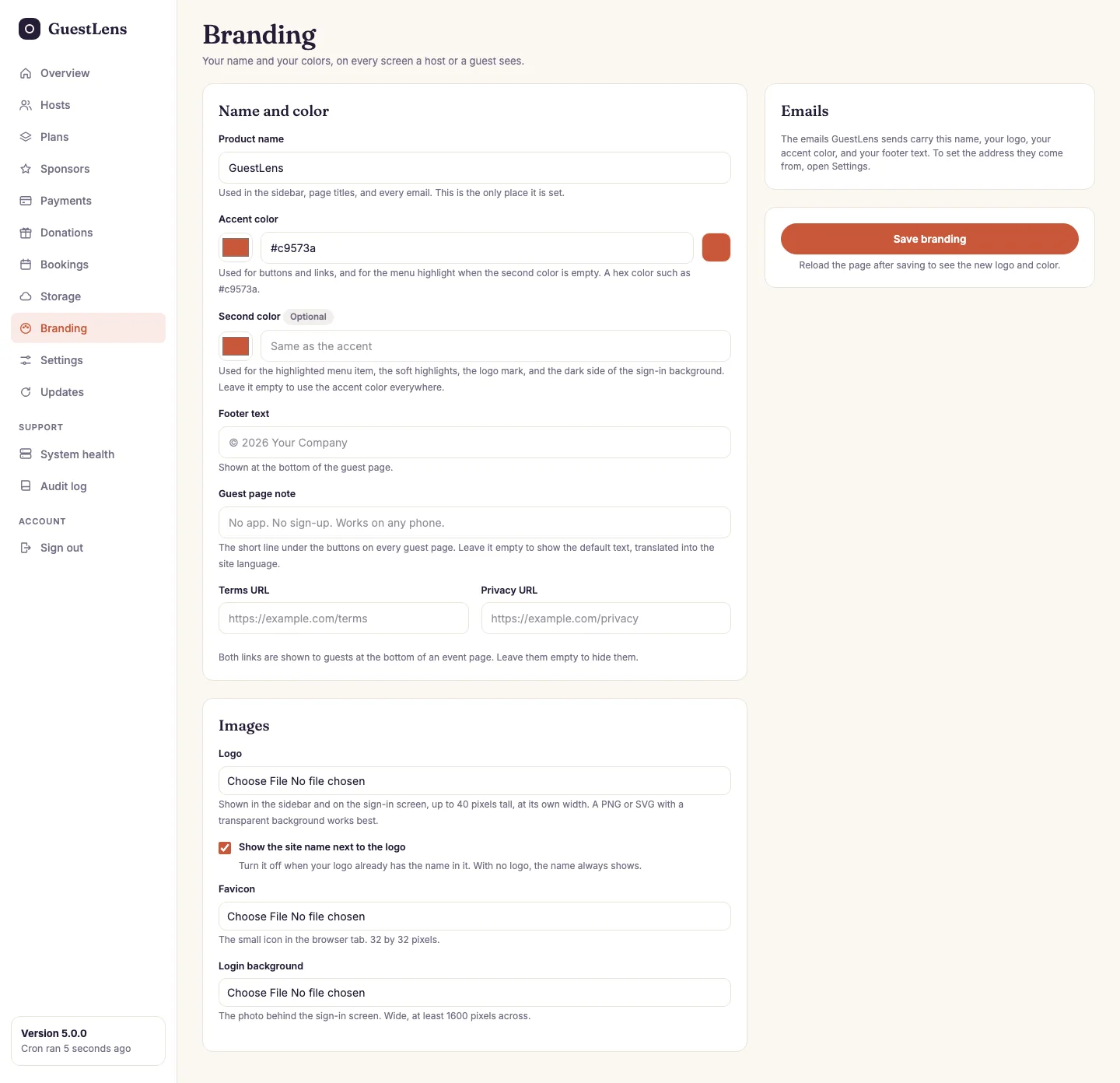
Name and color. The product name is used in the sidebar, page
titles, the guest pages, and every email. The accent color is used for buttons,
links, and highlights (a hex color such as
#c9573a). The footer text is shown at the bottom of guest pages. The terms and privacy links appear there too. Leave them empty to hide them. The guest page note (new in 4.0) is the short line under the buttons on every guest page. The optional second color (new in 5.0) colors the highlighted menu item, the soft highlights, the logo mark when there is no logo, and the dark side of the sign-in background. Leave it empty, or press Clear, to use the accent color for all of them. Leave it empty to show the default, "No app. No sign-up. Works on any phone.", in the site language. - Images. The logo (shown in the sidebar, on the sign-in screen, and on error pages such as "Page not found", up to 40 pixels tall, at its own width; a PNG or SVG with a transparent background works best), the favicon for the browser tab (32 by 32 pixels), and the sign-in background (a wide photo, at least 1600 pixels across). With no sign-in background, the sign-in screen has a soft gradient made from your accent color (new in 4.2). If your logo already has the name in it, untick Show the site name next to the logo (new in 4.1). With no logo, the name always shows.
- Emails use your name, logo, accent color, and footer text automatically. The address they come from is set under Settings.
- Save branding, then reload the page to see the new logo and color.
What guests see
The guest pages use the event's theme for their colors, so a wedding still looks like a wedding. Your product name appears in the small "Shared with" line at the bottom of every guest page, next to your footer text and links.
Change the wording of emails and pages
The text of each email is in resources/views/emails. The text of each page is in the
page templates in resources/views. Edit them in any text editor and upload the file.
Keep a copy of your changes, because an update replaces these files.
Your own home page
Your main address, such as https://photos.example.com/, shows a small page with
Sign in and Create an account. Guests never see it, because a QR
code always opens the event's own address. To show your own landing page there instead (new in
5.0):
- Make a folder named
custominsideresources/views. - Put your page in it as
home.blade.php. A plain HTML page works. Rename it from.htmlto.blade.php. - Upload it. Open your main address in a private window to check it.
The file is not part of the GuestLens download, so an update never replaces it. Delete the file to get the built-in page back. Someone who is signed in still goes straight to their own area.
Links and images in your page:
- Link to
/loginfor Sign in and to/registerfor Create an account. - Put images in a folder of your own inside
public, such aspublic/home, and link to/home/photo.jpg. - Load styles and scripts from your own files in
publictoo, or from wherever your old landing page loaded them.
{{ }} and lines that start with @ as
code. If your page has them in text or in a script, write @{{ }} or put the script in
its own file.