 GuestLens
For hosts
Event settings
The Settings tab of an event controls who can open the page, what guests can send, and how the page looks. A setting the event's plan does not include is not shown at all: video, the guestbook, voice notes, and the custom hostname. The host sees what the plan includes under Plan and billing.
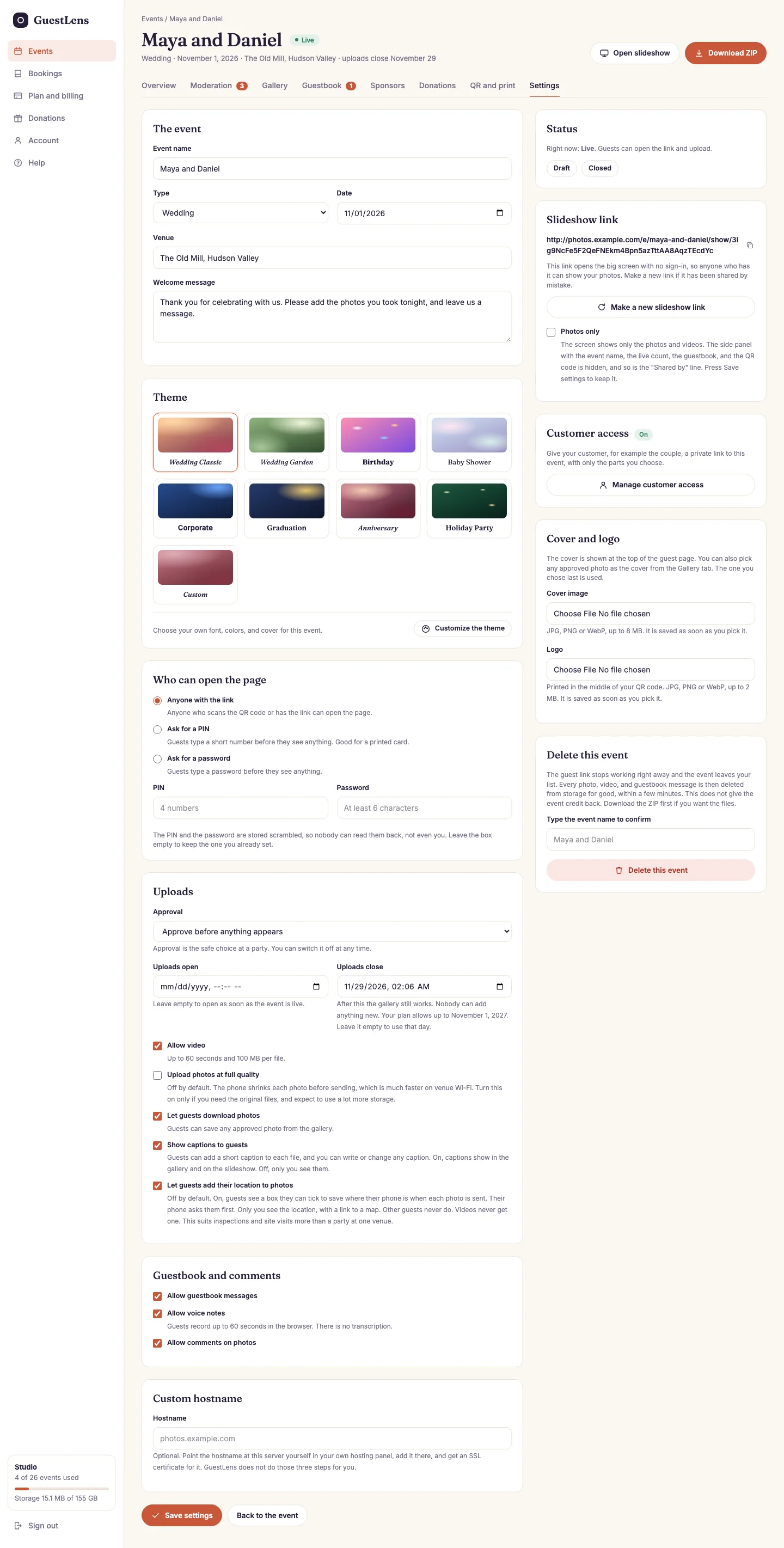
- The event: name, type, date, venue, and welcome message.
- Theme: the look of the guest page. The ninth tile, Custom, is the host's own theme, and Customize the theme opens the page to make it (new in 5.0). See Event themes.
- Who can open the page: anyone with the link, a PIN, or a password. See below.
- Uploads: the approval rule, when uploads open and close, and the switches for video, full quality, and guest downloads. See below.
- Guestbook and comments: turn written messages, voice notes, and comments on photos on or off.
- Custom hostname: the event on the host's own domain, when the plan includes it. See Custom domains.
- Status: make the event a draft again, or close it now.
- Slideshow link: the address for the big screen, Make a new slideshow link, and Photos only (new in 5.0). See The slideshow.
- Customer access: give your own customer a private link to this event. See Customer access.
- Cover and logo: the photo at the top of the guest page, and the logo for the middle of the QR code.
- Delete this event: type the event name to confirm. The guest link stops working at once, and the event credit does not come back. Within a few minutes, every photo, video, and guestbook message is deleted from storage for good, also on S3 and Google Drive. Download the ZIP first.
Remember to press Save settings at the bottom. The cover and logo save as soon as you pick them.
Who can open the page
| Setting | Use it for |
|---|---|
| Anyone with the link | No barrier. Normal for a wedding with the QR code on every table. |
| Ask for a PIN | A four-digit code, printed on the invitation or the card. Good for a private event. |
| Ask for a password | A longer secret (at least 6 characters), for example for a company event. |
Once a guest types the right PIN or password, they are not asked again on that phone. The PIN and password are stored scrambled, so nobody can read them back, not even the host. Changing the PIN signs every phone out of the event.
Upload settings
| Setting | Means |
|---|---|
| Approval | Approve before anything appears (the safe choice at a party), or show everything at once. |
| Uploads open | Leave empty to open as soon as the event is live. |
| Uploads close | After this time the gallery still works, but nobody can add anything. The plan sets the latest possible date, shown under the box. |
| Allow video | Guests can upload video, up to the plan's length and size. |
| Upload photos at full quality | Off by default. The phone makes each photo smaller before sending it, which is much faster on venue Wi-Fi. Turn this on only if the host needs the original files, such as a photographer. It uses much more storage. |
| Let guests download photos | Guests can save any approved photo from the gallery. |
| Show captions to guests | On by default. Captions show in the gallery and on the slideshow. Off, the host still sees and edits them, which suits private notes. See Captions and photo details. |
| Let guests add their location to photos | Off by default, and only shown when you allow it for your site and the plan includes it. Each guest still chooses for themselves. See Location stamping. |