 GuestLens
Run your site
Hosts
Hosts are your customers. Most hosts sign up on their own from your sign-in page and buy a plan. You can also add a host yourself, for example a customer who paid you by invoice.
The host list
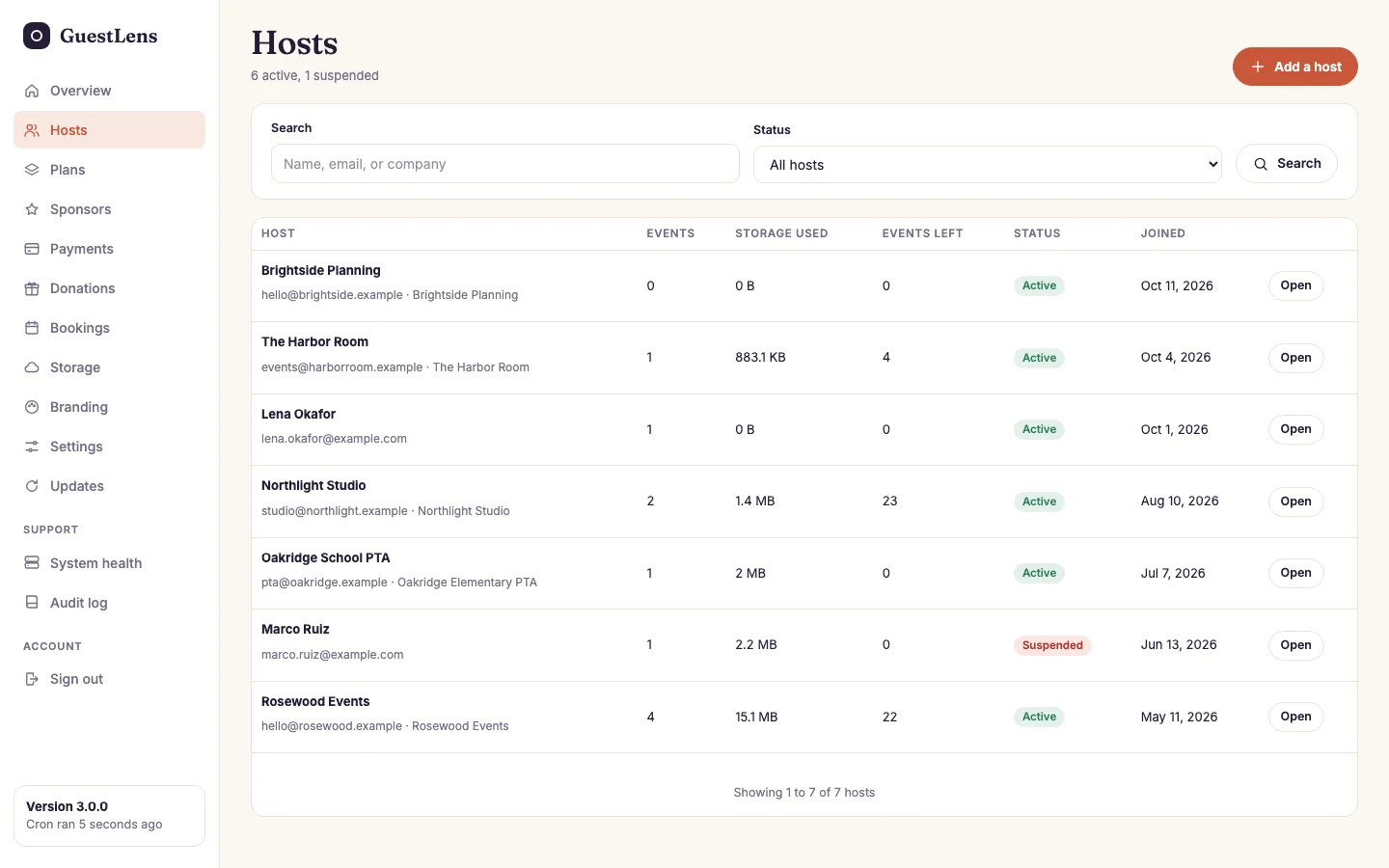
- Search by name, email, or company, and filter by status (active or suspended).
- One row per host: their events, the storage they use, the event credits they have left, and their status. Open shows everything about them.
- Add a host creates an account yourself.
One host
Open a host to see their events and purchases, and to act on their account.
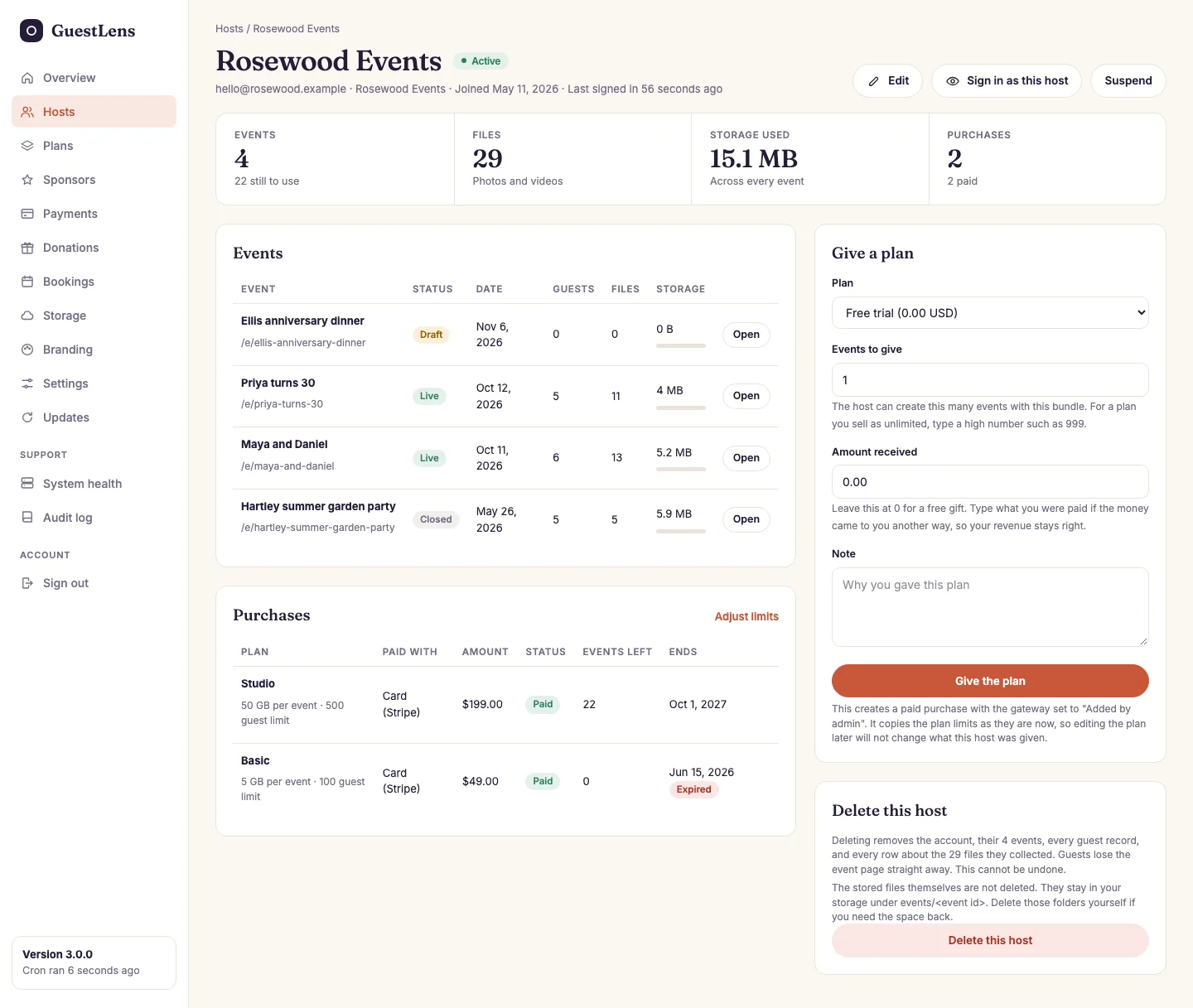
- Edit their details or password. Sign in as this host shows you exactly what they see, which helps with support. Suspend signs them out and stops them from signing in again. Their events stay online for guests. Press it again to let them back in.
- Events: each event with its status, date, guests, files, and storage.
- Purchases: every plan they bought, how many events are left, and when it ends. Adjust limits changes a bundle they already own.
- Give a plan adds a plan by hand. Leave the amount at 0 for a gift, or type what they paid you another way so your revenue stays right.
- Delete this host removes the account, their events, and every guest record. It cannot be undone.
Deleting a host deletes their files too. Since 4.0, the photos, videos, and voice
notes of every event of the host are deleted from storage in the background, within a few
minutes, on this server, on S3, and on Google Drive. Download anything the host still needs first.
Add a host yourself
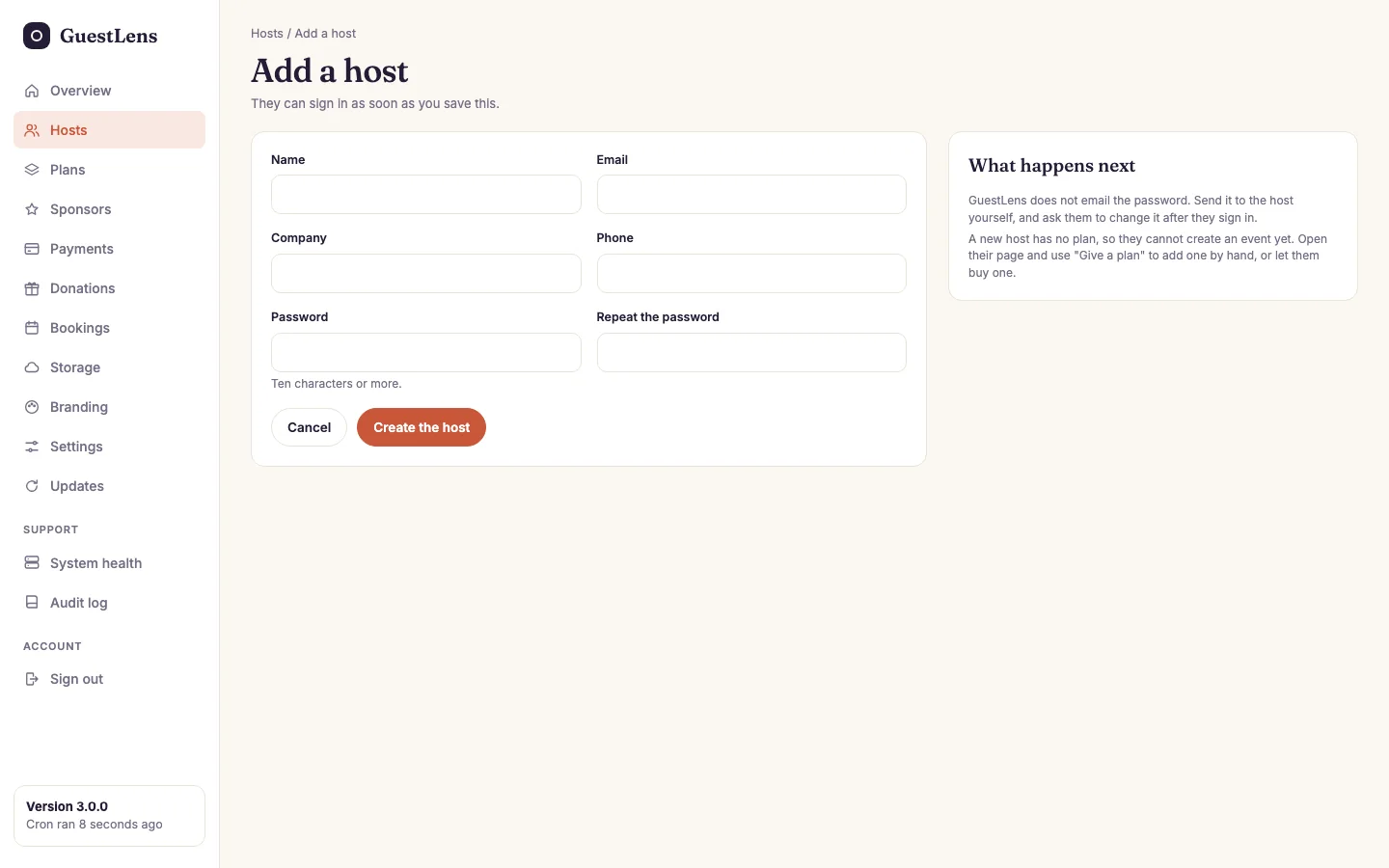
- Their name, email, an optional company and phone, and a password of ten characters or more.
- What happens next. GuestLens does not email the password, so send it to the host yourself. A new host has no plan, so they cannot create an event yet. Open their page and use Give a plan, or let them buy one.