 GuestLens
For hosts
Photo report and photo book
The photo report turns the approved photos of an event into a PDF that a host can print or send on: a keepsake album after a wedding, or a record after an inspection or a site visit. New in version 2.0. Version 3.0 adds the photo book, a fourth layout made for printing.
The host opens it from the Gallery tab with Make a photo report (PDF). It is part of a plan, so you can leave it out of a cheap one. See Plans.
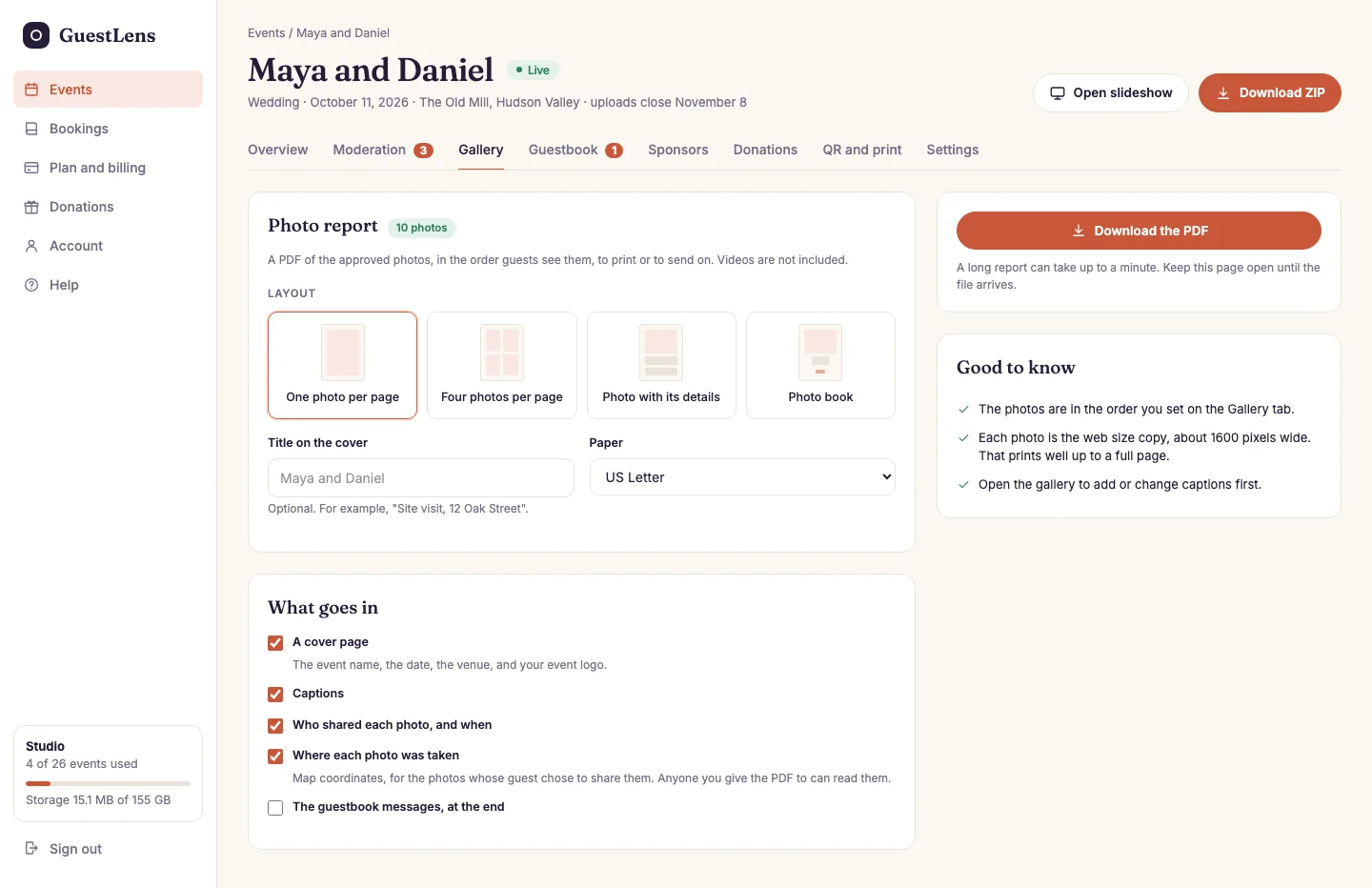
- The layout: one photo per page, four photos per page, one photo with its details in a table under it, or the photo book.
- A title for the cover, such as Site visit, 12 Oak Street, and the paper size, US Letter or A4.
- What goes in: a cover page, captions, who shared each photo and when, where each photo was taken, and the guestbook messages at the end.
- Download the PDF. The file is made while the host waits, then downloads.
How big a report can be
A report is made in one request, so it has to fit inside what your hosting allows. GuestLens keeps it light: it uses the 1600 pixel web copy of each photo, never the original, and it stops at the number of photos you set under Settings, Photo report. The default is 50, which fits a 128 MB memory limit. GuestLens also asks PHP for 256 MB while it makes a report, which many hosts allow.
A host with more photos than that makes the report in parts. The screen says how many parts the gallery needs, and the host types where each part starts: 1, then 51, then 101.
What is in it
- Approved photos only, in the order the host set on the Gallery tab. Videos are left out, because a PDF cannot play them.
- A photo that the server could not make a web copy of, such as some HEIC photos, is left out.
- Every page has the report title and the page number at the bottom.
- Locations are shown as map coordinates. Anyone who gets the PDF can read them, and the screen says so.
The photo book
The photo book puts each photo together with the guest's name, the caption, and that guest's guestbook messages, in one PDF the host can take straight to a print shop. New in version 3.0. Choose Photo book as the layout.
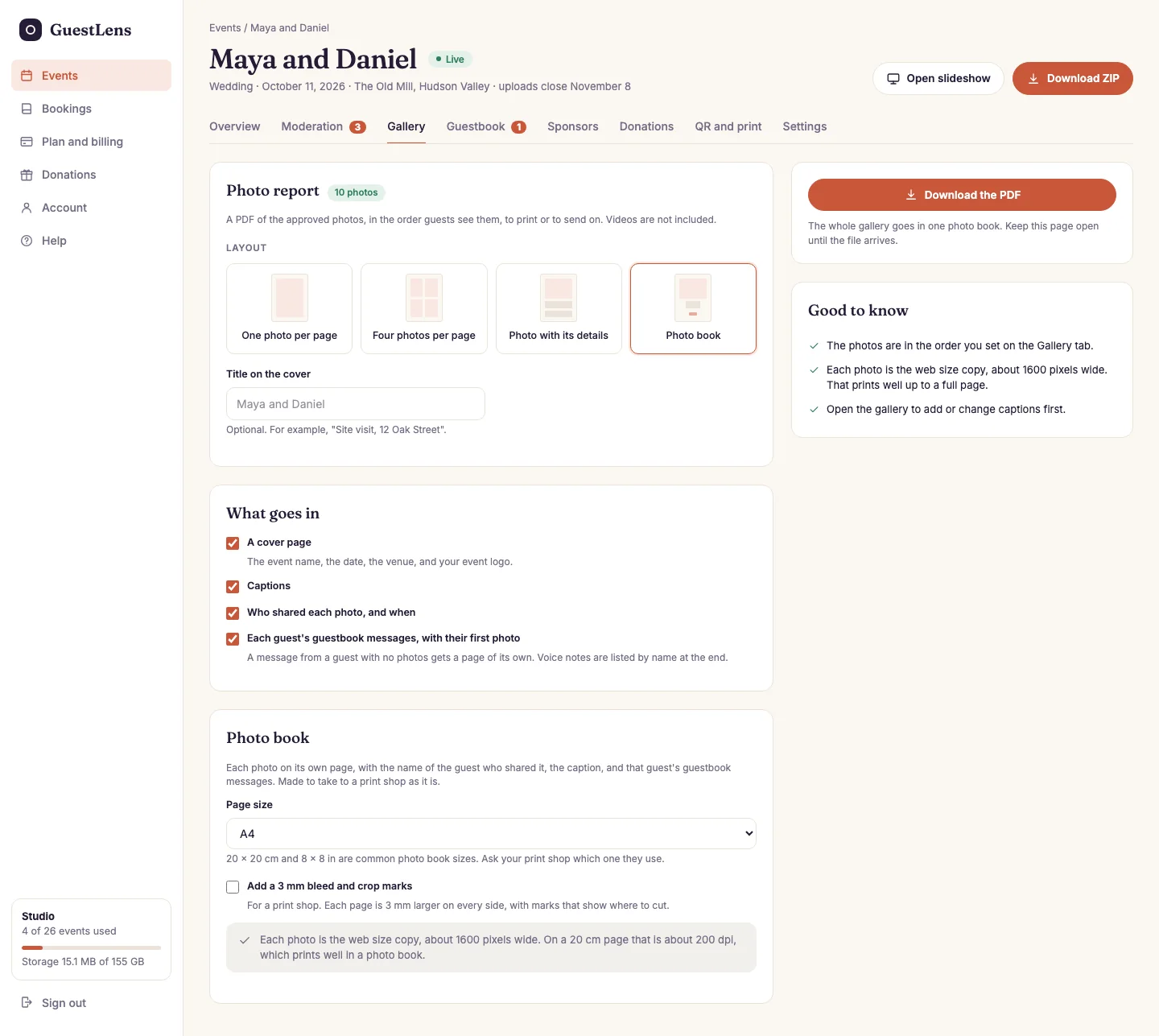
- Photo book, the fourth layout.
- What goes in: a cover, captions, the guests' names, and each guest's messages with their first photo.
- Photo book options: the page size, and a 3 mm bleed with crop marks for a print shop.
- Download the PDF. A big book is made in the background instead. See below.
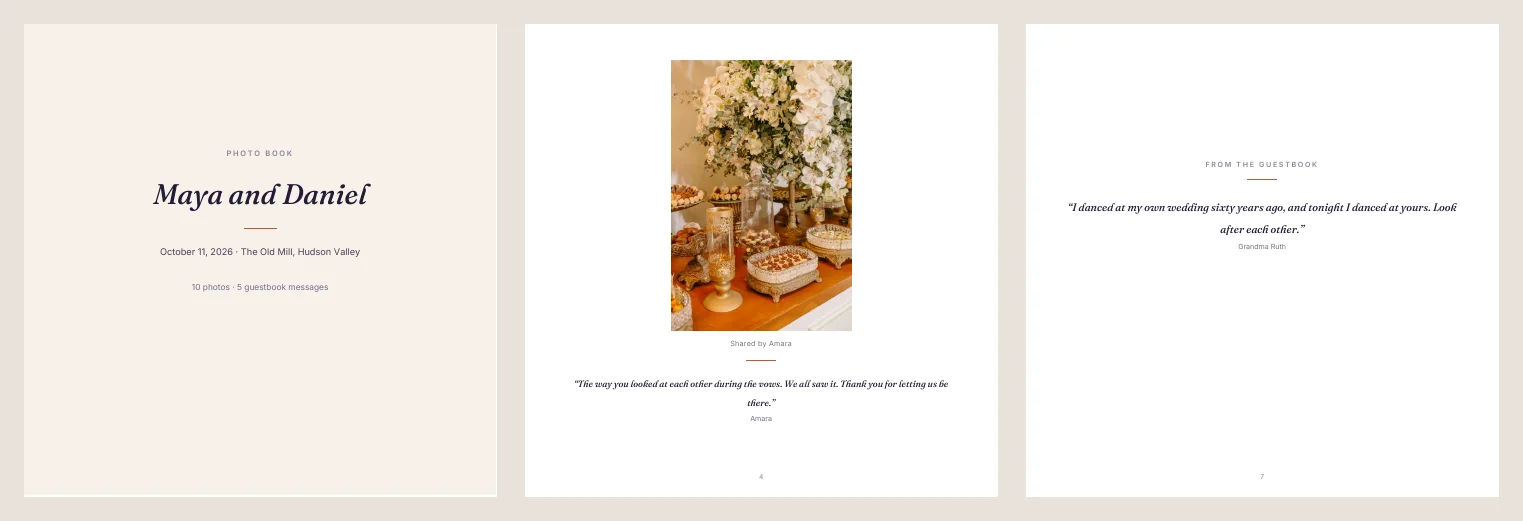
How messages are placed
- A guest's messages go with that guest's first photo, and nowhere else. A long message gets the page after the photo.
- A guest who wrote a message but sent no photos gets a page of their own. These pages are spread between the photo pages, not piled at the end.
- Voice notes cannot play on paper, so the last page lists who left one.
- Only approved photos and messages go in.
- Messages in other alphabets, such as Cyrillic, print with a font that has the letters.
Made for printing
- Four page sizes: A4, US Letter, and the two common photo book sizes, 20 x 20 cm and 8 x 8 inches. Ask the print shop which one they use.
- An optional 3 mm bleed with crop marks: each page is 3 mm larger on every side, with marks that show where to cut. The PDF also carries the trim and bleed boxes print shops look for.
- A cover, page numbers, and an even number of pages, because printed books are made of sheets. A blank page is added at the end when needed.
- Each photo is the 1600 pixel web copy. On a 20 cm page that is about 200 dpi, which prints well in a photo book.
A big photo book
A book with up to the number of photos set under Settings, Photo report (counting message pages too) downloads at once. A bigger one is made in the background, in parts of 50 pages, and joined into one PDF, however big the event is. The host sees a progress bar and gets an email with a download link that works for 7 days. It needs the cron job.
On the ZIP download screen, the host can also tick Add the photo book (photo-book.pdf) to get the book inside the ZIP.