 GuestLens
Start here Step 5 of 7
Set up the cron job
GuestLens does its slow work in the background: it puts uploaded pieces back together, makes thumbnails, builds ZIP downloads, checks payments, closes events, and sends reminder emails. A cron job is what starts this work. It is one line in your hosting panel, and it runs every minute.
Copy your cron line
The last installer step showed it. You can also find it at any time in the admin: open System health and look at the Cron card. It looks like this, with your real folder path:
* * * * * cd /home/yourname/guestlens && php artisan schedule:run >> /dev/null 2>&1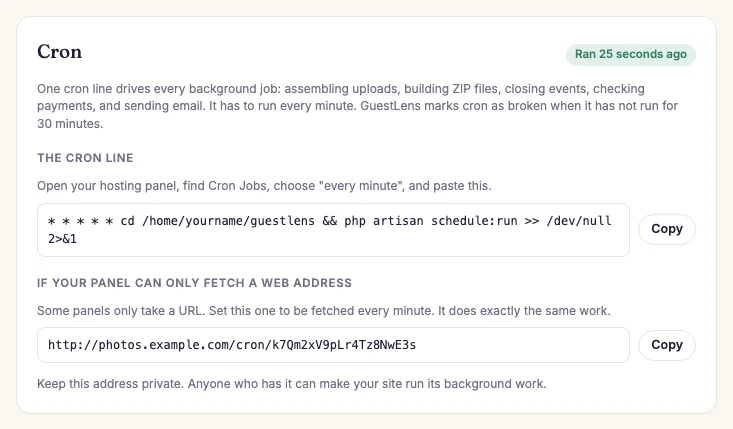
- Status: when cron last ran. It says Not running until it runs for the first time.
- The cron line, with a Copy button.
- The web address for panels that can only open a URL. See below.
Add it in cPanel
- In cPanel, open Cron Jobs.
- Under Common Settings, choose Once Per Minute (* * * * *).
-
In Command, paste only the part after the five stars, starting with
cd. - Click Add New Cron Job.
If your host shows an error like php: command not found, replace the word
php with the full path to PHP. cPanel shows that path on the same Cron Jobs page,
for example /usr/local/bin/php. On some hosts you choose the PHP version this way,
for example /opt/cpanel/ea-php83/root/usr/bin/php.
Some hosts do not allow a cron job every minute. If yours does not, choose Once Per Five Minutes (*/5 * * * *) instead. GuestLens works fully with it. Every task in the table below still runs on time. The only difference is that new uploads and ZIP files can take up to 5 minutes to finish. While people are using the site, GuestLens also processes waiting files during page visits, so it is often faster.
Check that it works
Wait two minutes, then open the admin Overview. The System health card and the box at the bottom of the sidebar now say Cron ran ... seconds ago.
If cron has not run for 30 minutes, a red bar appears across the top of every admin page until it runs again. You cannot miss it.
If your panel only supports URL cron
Some panels cannot run a command. They can only open a web address on a schedule (often called "URL cron" or "web cron"). Use this address instead, once a minute:
https://your-site.com/cron/YOUR_SECRET
The secret was made during the install and is saved in your .env file as
CRON_SECRET. System health shows the full address, ready to copy. Keep it private:
anyone who has it can make your server start its background work.
If System health says this fallback is off, the secret is empty. Open .env in File
Manager, set CRON_SECRET to a long random value of letters and numbers, save, and
reload System health.
You can also use a free outside service, such as cron-job.org, to open this address every minute.
What cron does each minute
| Work | How often |
|---|---|
| Run the job queue: finish uploads, make thumbnails, build large ZIP files, photo books, and offline albums, send emails | Every minute |
| Record that cron ran, for System health | Every minute |
| Ask Stripe and PayPal about payments that are still waiting, including gifts and booking payments | Every 10 minutes |
| Close events whose upload time has ended | Every 15 minutes |
| Delete unfinished upload pieces, and ZIP files, photo books, and offline albums whose link has expired | Every hour |
| Send booking reminders, 3 days before the date | Every hour |
| Recount the storage each event uses | Every day at 03:10 |
| Email hosts whose event closes soon | Every day at 09:00 |